Home Blog Page 37

3 Simple Fixes for Sky Q Error MR001

0

Has Sky error MR001 disrupted your favourite TV program? Despite being viewed in 29% of UK households in 2022, even Sky, the nation’s leading paid streaming service, is not immune to occasional errors and interruptions.

Sky error MR001 occurs when your Sky Q box cannot read your IP address from your router. Fortunately, resolving this issue is normally straightforward—just give your Sky Q Box and router a quick reboot and make sure any available firmware updates are promptly installed.

Below, we will show you how to reboot your Sky Q Box and Router to resolve sky error MR001 as well as two additional fixes for safe measure.

Main Fix – Reboot your Sky Q Box and Router

Rebooting your Sky Q Box and Router is an easy and effective solution to help your Sky Q Box locate your router’s IP address and resolve the sky error MR001. 

Follow these steps to reboot your Sky Q Box:

  1. Turn off your Sky Q Box by pressing the power button located on the right side of the front panel. The light should change from green to amber.
  2. Unplug the power cable from the back of the Sky Q Box, situated on the right-hand side. The light on the power button should go completely off.
  3. Wait for ten seconds, then reconnect the power cord to the back of the box.
  4. The light will turn red but should transition to amber after three to five minutes.
  5. Turn the Sky Q Box back on using the power button on the front.
Sky Q Box with arrow to show where the power button is

Follow these steps to reboot your router:

  1. Unplug the power cord from your router.
  2. Wait for 60 seconds, allowing the router to completely power down.
  3. Replug the power cord into the router.
  4. The lights on the router may flash for a few minutes as it reconnects.

By rebooting both your Sky Q Box and router, you should now have resolved error mr001 but failing that, we have two alternative solutions to fix your connectivity sky issue.

router with wire plugged in

Alternative Fix 1 – Reconnect your Sky Q Box to Broadband

To enhance your Sky Q Box’s ability to identify your router’s IP address, consider disconnecting and reconnecting your broadband. Follow these steps to reconnect your Sky Q Box:

  1. Navigate to the Sky menu.
  2. Scroll down to “Settings.”
  3. Click on “Status.”
  4. Scroll down to “Network connection.”
  5. Choose “Network setup.”

For Sky Broadband:

  1. Select ‘Connect to Sky Broadband WiFi.’
  2. Follow the on-screen prompt to go to your Sky router and hold down the WPS button for a few seconds (located on the side of the router).
  3. Once completed, the status on your TV screen should show the broadband is connected, and your Sky Q Box should display a green light.
Male hand pushing down wps button on sky broadband router

For Alternative Wireless Broadband:

  1. Select ‘Connect to WiFi from a different broadband provider.’
  2. Find your broadband from the local connections list.
  3. Select your broadband, input your broadband password.
  4. Your Sky Q Box will now connect to your broadband, and a status report will appear showing 2 ticks next to your router and the internet.

For Alternative Wired Broadband:

  1. Ensure your Ethernet cable is plugged into the Sky Q Box from your broadband router.
  2. Select ‘Connect to your router using a wired connection.’
  3. Your Sky Q Box will now connect to your Ethernet cable.
  4. Navigate back to the Settings menu.
  5. On your TV remote, press 001 and then press the select button. The secret installer menu should appear.
  6. Choose the Network page, turn off both the 2.4 and 5g wireless connections, and confirm. Your Sky Q Box will now exclusively use the Ethernet connection for broadband.

Alternative Fix 2 – Factory Reset your Sky Q Box

Resorting to a factory reset for Sky Q Box should be a final option for addressing Sky Error MR001, but it provides a reliable means to overcome the technical issue with a clean slate.

Here’s how to Factory Reset your Sky Q Box:

  1. Navigate to the Sky menu.
  2. Scroll down to “Settings.”
  3. On your TV remote, press 001 and then the Select button.
  4. The secret installer menu will appear; scroll down to “Reset.”
  5. Proceed to “Factory Reset.”
  6. Your Sky Q Box will reset entirely, erasing settings, network configurations, and remote control settings.
  7. Now, you have a clean slate to set up your TV with your Sky Q Box and broadband anew.
Screenshot of sky settings menu > reset page.

Why are songs greyed out in Apple Music? A common issue solved!

0

While Apple Music is a great streaming service that millions of people use worldwide it doesn’t come without its issues.

Apple Music users are asking why some songs are greyed out. Increasing numbers of customers are frustrated because some songs in their library aren’t able to be played – and there’s no explanation as to why.

If these issues continue then it might push Apple Music users to Apple’s competitors, Spotify or Google Play.

But, we know that you want to stay loyal to the music giant. So, let’s take a look at this common Apple Music issue. Below we explain the cause of the songs being greyed out and how to get these songs back.

You’ll be back to jamming to your favourite tunes in no time at all!

why are songs greyed out in apple music
Image by StockSnap from Pixabay

What are the reasons some songs would be greyed out in Apple Music?

According to Apple, there are a few reasons that could be the cause of some songs being greyed out.

The first reason is related to connectivity. It may be that you simply do not have any connection to the internet and the music is not stored locally so it’s, therefore, unable to be played.

If a song is greyed out and there is a cloud sign with a cross through it, it means the song is ineligible for download, Apple explained some reasons for this online here.

Additionally, a song might not be available in Apple music if it is greyed out, artists might change or remove songs or parts of albums or a song might not be available in your specific region.

Everything you need to know about Apple’s new releases: Apple News, Credit Card and TV Plus

Faster streaming with a better Wi-Fi connection, time for a boost!

[amalinkspro type=”showcase” asin=”” apilink=”https://amzn.to/3hnGmLm” new-window=”true” addtocart=”false” nofollow=”true” sc-id=”4″ imgs=”%3Ca%20href%3D%22https%3A%2F%2Fwww.amazon.co.uk%2FTL-WA850RE-Universal-Extender-Broadband-Ethernet%2Fdp%2FB00AHXXJVW%2Fref%3Das_li_ss_il%3Fie%3DUTF8%26linkCode%3Dli3%26tag%3Ddigihelpdesk-21%26linkId%3Dc8d40f5560f605c42b3ef6f03d3e3c06%26language%3Den_GB%22%20target%3D%22_blank%22%3E%3Cimg%20border%3D%220%22%20src%3D%22%2F%2Fws-eu.amazon-adsystem.com%2Fwidgets%2Fq%3F_encoding%3DUTF8%26ASIN%3DB00AHXXJVW%26Format%3D_SL250_%26ID%3DAsinImage%26MarketPlace%3DGB%26ServiceVersion%3D20070822%26WS%3D1%26tag%3Ddigihelpdesk-21%26language%3Den_GB%22%20%3E%3C%2Fa%3E%3Cimg%20src%3D%22https%3A%2F%2Fir-uk.amazon-adsystem.com%2Fe%2Fir%3Ft%3Ddigihelpdesk-21%26language%3Den_GB%26l%3Dli3%26o%3D2%26a%3DB00AHXXJVW%22%20width%3D%221%22%20height%3D%221%22%20border%3D%220%22%20alt%3D%22%22%20style%3D%22border%3Anone%20!important%3B%20margin%3A0px%20!important%3B%22%20%2F%3E” link-imgs=”false” specs=”Reaches those hard to reach places to provide better Wi-Fi coverage ~~~Improve your streaming~~~Quick Installation Guide~~~Allow more people and devices to connect to the same router~~~” btn-color=”#ff9900″ btn-text=”View on Amazon” alignment=”aligncenter” hide-prime=”0″ hide-image=”0″ hide-reviews=”0″ hide-price=”0″ hide-button=”0″ width=”1200″]TP-Link TL-WA850RE N300 Wi-Fi Range Booster[/amalinkspro]

What to do if all or most of your music is greyed out

It’s unlikely that all of your music will be greyed out but in the event that it is, we have some things for you to check.

If your music library is stored on a computer, make sure that ‘Sync library’ is turned on.

You can do this by going to “Settings” and “Music” on your phone. Then you can check that Sync Library is turned on for all of your other devices.

You should also make sure that all of your devices are connected to the internet.

What is the MacKeeper virus and how do you remove it from a MacBook Air?

What to do if it’s taking a long time to upload your music library

Another reason your music might be greyed out is if you’re trying to upload your music from another source.

Make sure your computer is authorised so any music that you previously purchased from the iTunes Store can be uploaded.

Connect your Mac or PC to the Internet. On your Mac, open the Music app. On your PC, open iTunes for Windows.

Make sure that Sync Library is turned on by following the instructions above and keep the Music app or iTunes for Windows open until your music library is finished uploading.

If you still experience issues with Apple Music then please contact us on our freephone number today – 0800 433 7963. Alternatively, you can drop us a message via our Facebook page.

Better Wi-Fi connection around your home

[amalinkspro_table id=”17109″ aff-id=”digihelpdesk-21″ new-window=”on” nofollow=”on” addtocart=”off” /]

If the Sky connection to your broadband router fails, here’s what to do!

0

Founded over 25 years ago, Sky TV is something which tonnes of people across the UK have in their homes. The fantastic service that Sky offers is second to none with some seriously impressive channel packages available.

However, as with a lot of tech, things can sometimes go wrong. There are occasional problems that can hamper your Sky viewing experience. If you can’t get your Sky box to connect to your broadband router then, unfortunately, this will mean that you’re unable to watch the shows you love.

When the error message “Sky connection to broadband router fail” comes up it can be hard to put right. So, let’s take a look at what could’ve gone wrong.

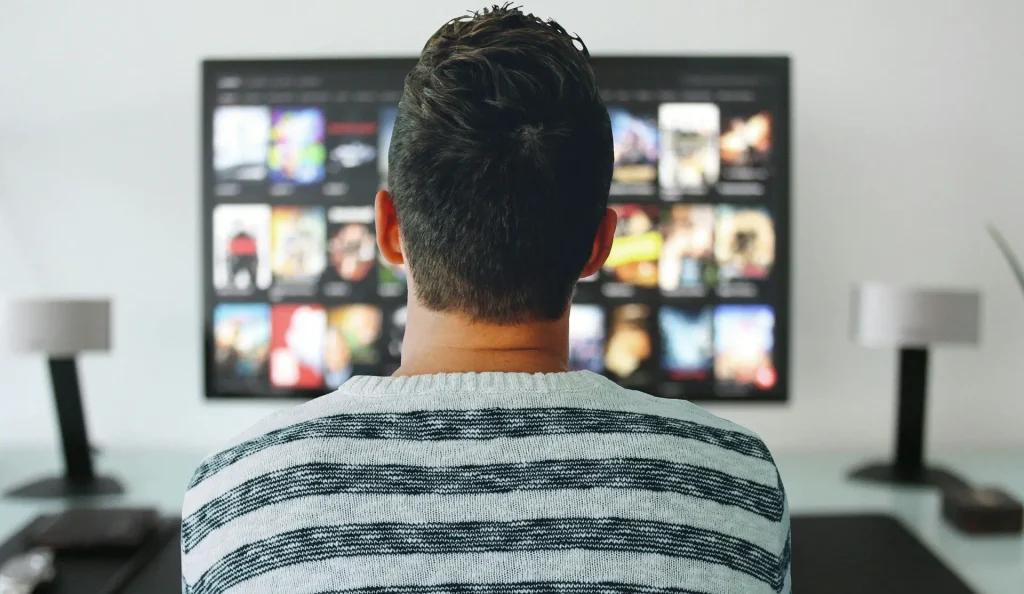
sky connection to broadband router fail https://pixabay.com/photos/tv-man-watching-room-office-3774381/
Image by mohamed Hassan from Pixabay – Sky connection to broadband router fail

‘Sky connection to broadband router fail’: Why is this an issue?

Without a solid connection to your broadband router, you won’t be able to receive any channel information or content from the Sky servers. as an internet connection is required.

There might be a temporary reason as to why your Sky box is unable to connect, such as a large storm in your area causing interference.

If there are no temporary factors that could be causing your issue then it’s most likely something to do with the software.

We review the Toshiba 43VL3A63DB: Budget TV with a seriously good spec!

How to get your Sky box to connect to your router in four easy steps

If you can rule out the weather as something which is affecting your Sky box signal then let’s take a look at some other options. Here’s how to get your Sky box to connect to your router in four easy steps:

  1. Firstly, disconnect your Sky on-demand connector from the box and turn your Sky box off completely.
  2. Wait a few minutes and reconnect the on-demand cable and turn your Sky box back on.
  3. Load up your Sky box and go to the “Network” tab to try and establish a connection with the router.
  4. If you don’t see an option to connect to the router via WPS, password or PIN then it could be an issue with the on-demand connector.

More often than not, this will allow your box to connect to the router and you can watch your favourite channels without hassle.

Seeing ‘Sky error MR209’? Here’s another Sky error code solved

Another common error that Sky customers seem to come across is Sky error code MR209. Sky error MR209 is described as a ‘proximity error’ with your Sky Q mini devices which, thankfully, can easily be reset.

This is applicable to Sky Q users with multiple boxes in the system. We’d suggest a Sky Q reset to begin with and this should fix the issue.

Resetting the Sky Q system is quite simple, you just need to go into “Settings”, “Network” and hit “Reset”.

However, some people may still encounter the same issue even after a reset. The problem for some people, in this case, is most likely that their WiFi signal simply isn’t strong enough. There needs to be a good internet connection in order to push a good enough signal around the house to connect all the mini boxes.

You will likely need to have a WiFi booster installed in order to get a strong enough signal for the error code to be dealt with properly.

Samsung N130 doesn’t turn on: Troubleshooting tips to fix your netbook

0

The Samsung N130 is a well-built and affordable netbook which has garnered rave reviews and already has people excited about the next iteration of Samsung netbooks.

Although the battery life is rated just above average by most, the netbook offers great screen resolution and is compact, so perfect for those wanting something easily portable if they are on the go.

Samsung consistently produces good quality products and has loyal customers who are willing to buy their products every time.

However, across the board, laptops don’t seem to last as long as they used to and this could just be one of those times where you have to buy a new one but hopefully, with our tips, you can get your Samsung N130 working again.

Need some troubleshooting tips for when your Samsung N130 netbook doesn’t turn on? Let’s take a look into what the problem could be.

samsung n130 doesn't turn on
https://elements.envato.com/couple-using-laptop-together-PW9TR72

Potential reasons why your Samsung N130 doesn’t turn on

There are many potential reasons why your machine might not be turning on and there are a number of solutions based on the root cause of the issue.

It could be to do with a power issue, so either the charging port, your cable or the battery might need replacing.

The electrical components inside could be messed up or burnt out in which case a full repair might be needed.

Or it could be something such as a virus that has infiltrated your netbook and shut it down.

Technika TV won’t turn on from standby? Here’s something to try

Troubleshooting to find out the problem

1. Unplug your charger cord.
2. Remove the battery.
3. Press and hold the “Power” button for 30 seconds.
4. Now plug in the power/charger cord.
5. Now put the battery back in.

If this doesn’t help, then test the power cord to see if it is definitely working. Either try your cord in another device or try another device’s cord in your laptop. You may also want to try charging it when the device is off, rather than on. If it works then the cord is probably the issue.

Should that not be the problem, then check the battery to see if it needs replacing.

Things to try to get your Samsung N130 back on

Try opening the netbook in ‘safe mode’ if the power button lights up. To do this, press the F8 key as soon as you press the power button and see if it comes up. Then run an anti-virus scan in safe mode if it will take you that far.

It could be that the motherboard, charging port or other electrical components are damaged within your machine, in which case it will need to be repaired or replaced.

DOQAUS Bluetooth headphones: Insane 52 hour battery life and a bargain at that

0

We take a look at the DOQAUS Bluetooth headphones. With an enormous battery life, great customer reviews and cheap price, they are certainly worthy of a good look over.

DOQAUS is not a name that not everyone will recognise and they are fairly new, but they are coming out with a lot of good quality headphones for people on a budget in 2020.

While you can spend hundreds of pounds on Dre Beats or other brands, a reliable, good pair of headphones can be bought for a much lower price.

There are a few different variations of DOQAUS Bluetooth headphones available on Amazon around the £30 mark. You can decide which model is the best for you with the comparison tool on their website.

Now see what we really think about this product and what the downsides are – are they too good to be true?

doqaus bluetooth headphones
Image by Luisella Leoni from Pixabay

What do we really like about the DOQAUS Bluetooth headphones?

For one, you can pick up this amazing product for just £32.99 from Amazon, you can’t expect a better price for something that’s going to give you a great audio experience.

With up to 52 hours of Bluetooth listening time, you will always have music when you’re on the go. Even when they are not charged, you have the option to go with a wired connection and not worry about the battery.

With 3-EQ modes providing richer sound effects and better listening experience, DOQAUS is allowing you to switch between well-balanced, bass boosted and high definition sounds freely.

The DOQAUS headphones are designed for long-term wear with the soft over-ear cushions featuring advanced venting and signature ergonomic pivoting for a custom, flexible fit for any head shape.

Are there any negatives we found with this product?

The one downside is that you can’t replace the rechargeable battery within the headphones so once it wears down completely you will need to buy a new pair. However, this could take a long time – we’re talking years – to run out.

DOQAUS have said that the battery should run at optimum performance for about three years so you’ll be getting your money’s worth at least before you need a new pair.

While the sound quality is pretty good, don’t expect to be totally shook, you will enjoy listening to your favourite songs but if you’re an audiophile you may not be that impressed, but we were pleasantly surprised given the price.

Take a look at the Panasonic TZ90: Travel camera with super zoom and 4K capability!

What’s our verdict on the cheap and ultra-popular DOQAUS Bluetooth headphones?

We think that these headphones are the pinnacle of the all the budget Bluetooth headphones combining stylish design and not scrimping on the quality of the headphones.

While we’ve mentioned you won’t get top tier audio, that’s expected, they are not expensive and for us, they do the job just fine.

The battery life is truly impressive with these headphones and we haven’t seen anything like this on the market to date.

Overall we think this is a good buy for just about anyone looking for a new reliable pair of headphones who doesn’t want to spend a fortune.

Toshiba 49U2963DB 49 review: TV features HDR10 and Dolby Vision

0

Toshiba continues to push out quality TV screens year after year for low prices, driving innovation and pushing the market forward as they expand operations.

We’re so used to the company coming out with winners that it’s a shock if one of their products has negative feedback.

We review one of the hottest TVs on the market – the Toshiba 49U2963DB 49-inch screen – and ask ‘is it worth the asking price?’

By the looks of things, this model has only seen rave reviews so far. However, technology isn’t perfect and there may be flaws somewhere, so we decided to take a look at this screen and give it a thorough review!

Toshiba 49U2963DB 49
Image by Mohamed Hassan from Pixabay

Is this just another iteration of a similar model or something different?

While this TV is similar to other models in the series by Toshiba, it comes at such a steep discount but doesn’t take a massive hit on quality as other makes do.

With 4K Ultra HD picture quality you get sharp and clear visuals at all times, no matter what you’re watching. You’re sure to be immersed into any scene.

Dynamic Dolby Vision gives you stunning contrasts and deep colours that allow for better picture quality and highly improved viewer experience.

Being a Smart TV, you’re able to catch up on all your favourite shows through a variety of apps and use your TV as a browser if you so wish.

The price is excellent, purchase one online. The Toshiba 49U2963DB is available on AO and eBay for £239.99. For a TV of this standard, we think that’s a great price, in fact, it’s a steal!

Everything you need to know about Apple’s new releases: Apple News, Credit Card and TV Plus

Are there any drawbacks with this TV?

The Toshiba 49U2963DB can be a little bit laggy when scrolling through menus at times but this isn’t something that should bother anyone immensely.

The speakers are of standard quality. But if you’re a real audio buff, then an additional speaker may be required. If you’re wanting to create a home cinema feel then why not check out this recent review we did of a soundbar from LG, pairing these two products could create a much better all-round experience.

The sound isn’t bad by any means and if you just want a standard level of sound you won’t be disappointed, the soundbar recommendation is purely for those who want something more.

Our final review on the Toshiba 49U2963DB 49-inch TV

With the Toshiba 49U2963DB, you’re sure to get excellent picture quality for a great price, it features the latest in Dolby Vision and HDR technology.

We feel that the sound is about on par with other budget TVs, however, paired with the LG soundbar mentioned above, you could create a great home cinema style set up for a great price.

For a Toshiba 49-inch TV we think that £240 is a fantastic price, it’s a great all-rounder with Smart features included.

“Unfortunately Samsung keyboard has stopped J7”: How to fix this troubling issue with your phone

0

If you’re using your Samsung J7 and have been met with the message “Unfortunately Samsung keyboard has stopped,” then don’t worry, we’ll do our best to get things sorted for you.

The Samsung J7 phone is a popular model created by the tech giant. Samsung is well-known for producing high-quality phones with lots of innovative features.

They are probably most well-known for their Samsung Galaxy series which are some of the most popular phones on the market, even rivalling the iPhone.

Samsung delivers stunning sharpness with their screens and never disappoint on processing power with some of the fastest technology on the market.

The phone’s keyboard can sometimes be an afterthought when purchasing, but when it stops working you’ll soon notice the importance of a good working keyboard. So, let’s take a look at how to get it working again.

Unfortunately Samsung keyboard has stopped j7
PIXABAY

Why has my Samsung J7 keyboard stopped functioning?

The error message “Unfortunately Samsung keyboard has stopped” could pop up on your Samsung J7 at any point, likely after a short period of non-response where you press the keyboard and nothing works.

This is likely just a short term glitch and shouldn’t take long to sort out, it is rarely anything serious.

We’ve included a number of solutions below so that you can get back to sending texts, calling friends and scrolling Insta!

The LG V20 vs LG G6: Camera comparison: Which phone comes out on top?

How can I fix this issue?

Restarting the keyboard is probably the most effective way to solve the problem. To do this follow the steps below.

  1. Go to the Settings menu of the device.
  2. Scroll down to the Apps section and tap on Application Manager.
  3. Swipe to go to the “All” tab.
  4. Now look for the app Android Keyboard and select it.
  5. Now tap on “Force Stop” to stop the keyboard.
  6. Exit out of the Settings menu and go back to using the keyboard and check if it works.

If that didn’t help to solve the problem then it could be an error within the app, a simple reboot of your device could solve this, so hold down your power button and press restart to try this.

We recommend that if this isn’t just a one-time issue and is a reoccurring thing then you should follow the solutions outlined below.

What to do if that hasn’t worked

Clearing the cache and data of an application allows you to clear files that can be possibly corrupted or which may be creating problems because of bugs.

  1. Go to the Settings menu of your device.
  2. Tap on Application Manager which is under the apps section.
  3. Swipe to the tab which includes “All” apps. Tap on the keyboard app.
  4. Tap on Clear Cache. Now tap on Clear Data. Tap OK to confirm

Once the cache and data files have been deleted, restart your device and check if the keyboard is working.

The last thing to try is to update the keyboard.

To do this open the Play Store, tap on the three horizontal lines and then tap on “My apps & games”.

If there is an update for the keyboard, tap Update.

We review the Toshiba 43VL3A63DB: Budget TV with a seriously good spec!

0

With a 43-inch screen, 4K capabilities and ultra HD available, the Toshiba 43VL3A63DB is a top competitor on the market in 2020.

Toshiba is a powerhouse within the TV market, selling millions of products around the world and landing many prestigious awards.

Headquartered in one of the most technologically advanced countries in the world, Tokyo, Japan, they are known for their innovative designs.

Not just limited to TVs, Toshiba offers a range of techy products including the Google Chromebook 2 which has been a huge success since its launch in 2014.

Read on to find out more about the Toshiba 43VL3A63DB TV.

man on sofa watching tv

If you’re on a budget, you’re onto a winner

With 4K Ultra HD resolution you won’t find yourself sat looking at a blurry nature documentary, you’ll be immersed into the depths of the jungle or the vast landscape of the Serengeti with stunning picture and colour you’d not usually expect to see in a budget TV.

TRU Picture Technology provides smooth, upscaled and more detailed viewing – whatever you’re watching!

Toshiba has partnered with Onkyo to bring TV to life with enhanced sound quality. Featuring built-in Onkyo speakers and speaker boxes, the TV has clearer audio for both dialogue and music.

You can get this excellent TV from just £249.99, which in our eyes, for the machine you’ll be getting, is an absolute bargain!

This TV is Freeview-ready so you’ll have some of the most popular channels ready to watch with no subscription needed and it doesn’t take long to set-up.

Is your LG G2 phone battery draining too fast? We have a way to fix this

What are the negatives with the Toshiba 43VL3A63DB TV?

There can be something to be said about the depth of some pictures, the screen can suffer when tasked with adding depth to high-quality movies but it doesn’t take away from the action. Plus, the stunning colours help negate this downside.

When using the Smart TV features, the video apps do have some delay but it’s not so bad that it causes any issues.

Overall, these two negatives were the only ones we could find and the positives far outweigh them.

Should you buy this TV? We give our final verdict!

The question is should you buy this TV? Well, if you’re looking for a quality screen that isn’t going to break the bank then we say yes!

You’re sure to bag yourself a great Toshiba TV that should last a long time, and you’re getting some excellent Smart TV features and screen resolution.

The TV’s audio is also guaranteed to impress with the built-in Onkyo speakers to give you the best audio experience possible.

Overall, we’d say it’s a solid investment that won’t disappoint.

What to do when your Sky Q box keeps losing internet connection

0

When your Sky Q box keeps losing its internet connection it can be frustrating as it means you aren’t able to kick back and watch your favourite shows.

There are many reasons why your Sky Q system might keep losing its internet connection from your internet not being strong enough to a malfunction with the box itself.

If you want to watch all your favourites, it’s essential that we find out what is the cause of your problems and how to rectify them.

We’ve put together this guide to help you find the root cause of the issue and fix your internet connection.

Why does my Sky Q box lose internet connection?

As mentioned above, the Sky Q needs a strong, constant internet connection to be able to provide its services.

If your internet isn’t up to scratch then you will be unable to receive the high-quality streams from the box.

You can check your internet speed here to see if it might be that causing the problem.

It could also be an IP address error if you have another device trying to use the same IP as your Sky Q box then it might “kick” the Sky box off the network.

Find the solution for the Sky app error code 91-1 in three easy steps!

How to fix your Sky Q box internet connectivity

  1. Turn off your WiFi on the main Sky Q box. You can do this in the engineer’s menu, to access this scroll down to settings – but don’t select it – then enter 1001.
  2. Create a new wifi network with your router.
  3. Turn on the WiFi on your Sky Q box and connect to the new WiFi network.
  4. In the IP address settings under network advance settings on the Sky Q box manually change the DNS server settings to 8.8.8.8 (that’s the bottom row of numbers.)
  5. Turn the WiFi back on and reconnect to the main box.