The Sky Q box allows you complete viewing freedom. You can rewind, pause, fast forward and record shows like never before.
Sometimes there might be a glitch with your Sky Q box and you may find that your Sky Q box has a mind of its own and unpauses itself at random intervals.
We take a look at this problem and suggest some solutions to get the pause feature working again.
sky q unpauses itself
Why is my Sky Q box unpausing itself?
As with many new technologies, there are some teething errors that plague the system and a really common one is that the Sky Q box won’t always stay paused when it’s asked to.
Some of these issues are incredibly complex to fix and you may need a replacement Sky Q box but thankfully the majority, including this error, are fairly straightforward.
A simple reset of some features should fix the issue and allow you to pause programs at will again.
How to fix the unpausing glitch in four easy steps
A settings reset and reboot should sort this annoying glitch out easily.
Disconnect the power for 30 seconds and then reconnect, waiting for it to set itself up again.
Enter the hidden menu by navigating to “Home” and then head to “Settings” but do not press “Select.”
With “Settings” highlighted enter “001” and then press “Select.”
Only perform the reset once as any further reset will wipe all recordings and series reminders.
Recording your favourite programmes and movies on your Sky box is something we all love to do. So when you encounter technical fault 11 272 – which means your download has failed – it can be a real pain.
Sky was the first real game-changer when it came to the market and it opened up so many more channels when it was introduced to customers back in 1990.
They have operations in the UK, Switzerland, Spain, Germany, Ireland, Austria and Italy. Sky is one of the most well-known TV services and broadcasts some of the biggest sports events and latest movies.
Technical faults can be complicated to solve because they normally require more than a simple reset of the Sky box.
We’ve put together a small step-by-step guide below to help you solve this nuisance and allow you to record all of your most loved shows and movies without hassle.
What does technical fault 11 272 mean?
You’ll likely experience technical fault 11 272 when you’ve tried to record and programme or a movie and you go to view it in your planner.
Sometimes it can affect just a few but it can also affect all of your recordings which is extremely frustrating and the fault will pop up as you try to view the recorded item, not allowing you to see it.
This is likely only going to affect you if you are in possession of an older or refurbished Sky “Thompson” box that has outdated software.
The newer boxes have not shown this fault and so it is believed to be a problem related to the older generation of Sky boxes.
Fix the “Sky download failed technical fault 11 272” error
Let’s try a Sky Planner Rebuild to tidy up your planner files and reset a few things.
Press Services, then 0, 0, 1, Select, then 7.
You won’t lose your recordings and you should allow the rebuild to finish before you turn off your Sky box at the wall before turning it back on.
If that doesn’t work, we would suggest opting for a Full System Reset (this follows the same sequence as the above, but press 8 instead of 7). Note: This will mean that the box will be wiped entirely.
This will delete your recordings because we’re resetting your entire planner in hopes to solve whatever the system is having problems with.
If your Sky Box isn’t turning on after a power cut then it could have affected the box’s internal components.
Additionally, your Sky Box may fail to turn on after a power cut if there has been a tripped circuit breaker or a blown fuse, affecting the power supply to the box.
In this guide we are going to share some additional reasons why your Sky box might not turn on after a power cut and some steps you can take to troubleshoot the problem.
Why will my Sky Box not turn on after a power cut?
Sky box not turning on after power cut UK
Much like your other techy items, the Sky Box needs a constant signal to the servers or the mains, otherwise, it may need to be reset, rebooted, reformatted or have something else done in order to repair it.
In a small percentage of cases, the power cut could have damaged the Sky Box but this is unlikely and you should be able to find the fix in this article.
If the above method has not worked then you will likely need to perform a planner rebuild. Alternatively, we can always arrange an engineer visit for you.
A Planner Rebuild is a better option to go for to save your stored recordings and settings.
Firstly, press the Services button.
Choose option 4 – System Setup.
Now press the 0, 1 and Select buttons on your Sky remote control.
This should take you to the Installer Setup menu.
Now choose option 7 – Sky Planner Rebuild.
Select Sky Planner Rebuild and wait until the system message ‘Housekeeping please wait’ has gone and the system has restarted.
The last resort to get your Sky Box up and running
If you choose to complete a factory reset, all of your recordings, series links and reminders will be deleted in the system reset so check these things first:
Check if the box is in standby mode.
Is the box connected to the telephone line?
Is the box and its wiring connected and switched on at the mains?
Check that your Sky box software is up to date.
Is there sufficient signal? Are you experiencing bad weather?
Is the Sky viewing card fully inserted?
Again, all of your recordings, series links, and reminders will be deleted so proceed with caution.
Click the Services button on your remote.
Press 001 on your remote then select.
This will take you to the setup window.
Click across to system reset and select.
Finally, a ‘For your information’ box will appear and display ‘Housekeeping please wait’ the box will now reset and reboot.
This will now complete a planner rebuild and factory resets your box.
Occasionally, radio channels can disappear from your Freeview television. This can be a frustrating experience, but thankfully there are several different ways you can solve this issue.
Our experts at Your Fix Guide suggest retuning your Freeview TV regularly as this will ensure a smooth viewing experience. However, sometimes channels can just disappear from certain regions of the UK.
Keep reading for our handy guide on how to get your radio channels back!
Image by tookapic from Pixabay
Why have my radio channels disappeared?
First off, in Scotland, all the radio channels disappear from 5 pm to midnight in order to make room for BBC ALBA.
If you reside outside of Scotland then it is likely to be a problem with your receiver.
Your receiver has to be able to capture the correct frequencies from the radio stations so that you can listen in on Freeview.
This could have been messed up because your TV tried to auto-tune and latched onto a weaker signal that won’t be able to give you the radio channels you want.
It’s an easy fix and you can do it with a manual retune which we have explained in detail below.
Finding your YouView box stuck in maintenance mode could indicate an issue with the box’s internal storage such as a corrupted hard drive.
It’s a very common issue among BT’s YouView customers with many often left with no solution.
We understand that waiting on hold for hours isn’t suitable when all you want to do is get your TV up and running again.
While restarting the device may solve most problems, with this particular issue, you may have to resort to resetting the box to factory settings.
This glitch throws a real spanner into the works, so let’s take a look at some solutions to get your BT YouView box out of maintenance mode.
Youview BT box stuck in maintenance mode? Here’s why and how to fix it!
Why does the YouView BT box get stuck in maintenance mode?
If you’ve attempted to turn on your BT YouView box to find that it’s sitting in maintenance mode then it can be quite worrying. But there’s no need to fret as it’s a common issue which is easily sorted.
Getting stuck in maintenance mode can happen at random intervals. It doesn’t seem that there is any particular reason for the box getting stuck in this mode.
Quite simply, the cause is due to a glitch. When you turn your box off, sometimes software updates are sent to the box from BT. The box should usually sort itself out without you noticing but sometimes it gets stuck in maintenance mode.
If you have your YouView box manual to hand there are some instructions available there to get out of maintenance mode.
Fixing Sky app error code 91-1 is essential because you won’t be able to use the app without sorting it first, follow this guide to find the solution.
The Sky Go app has been around for a while now and it’s useful if you’re on the go, such as commuting and you want to watch your favourite Sky shows.
If you haven’t already got the app then we highly recommend downloading it because there is no extra monthly cost if you’re already a Sky subscriber.
Whether you’re on Android or iOS you will almost undoubtedly be unable to use the app at some point due to an annoying error code that you don’t know how to fix.
The information below should help resolve the error quickly and your app will hopefully be working as it should.
What seems to be causing Sky app error code 91-1?
Before you can go about solving the error code it’s a good idea to understand what could be causing it.
Many people say they have experienced this app when using public WiFi and their network at home so it is unlikely to be something about security or permissions.
Sometimes a message will accompany the code saying “Sorry, a technical error occurred, please try again.”
This could mean any number of things on a more broad scale, however, it likely means there is a glitch within the app which narrows down what you can do to fix it.
What to do if the above hasn’t worked and reasons why it might not work
This is very specific but if it’s live sports you are trying to watch, you should try installing the Sky Sports app as this would be the better way of accessing the Sky Sport servers.
If you’re using a public network then it could be the network admins have blocked the Sky Go app and unfortunately, there’s little that can be done about this.
The only other thing for you to try is restarting your phone and seeing if that corrects the error because it can sometimes be a small problem with your phone’s hardware.
If this still has had no change then don’t hesitate to get in contact with us on 0800 433 7963 or send us a message via our Facebook page!
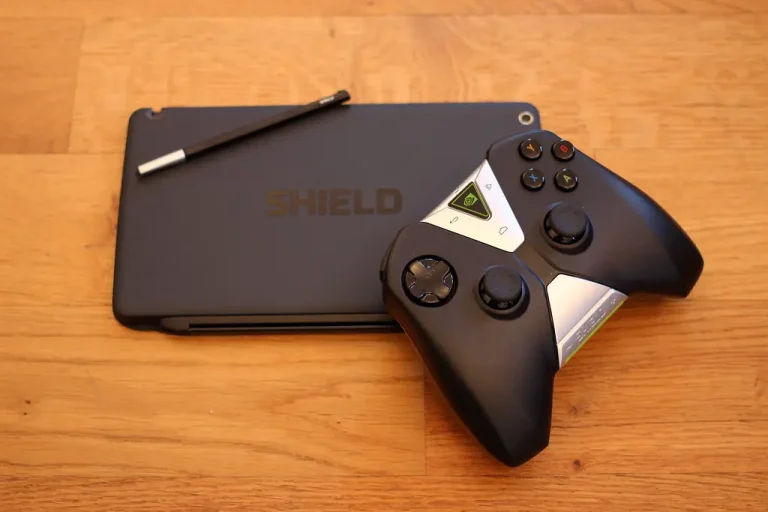
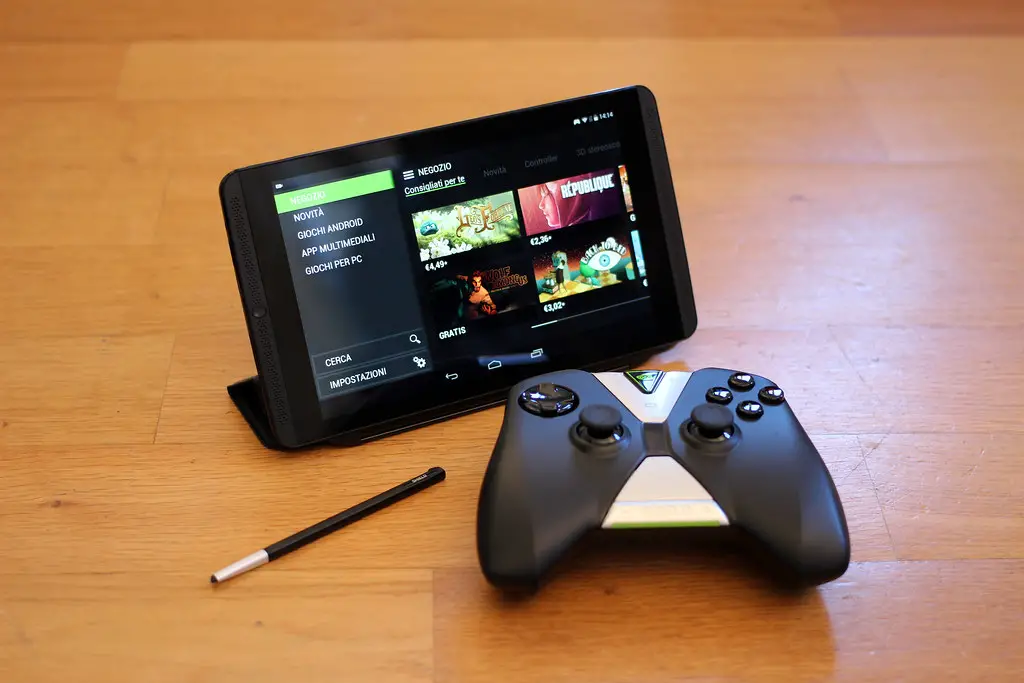
Nvidia is known for its high-powered gaming chips and graphics card but this is a new offering from them, a new all-in-one media streaming device to rival the giants of the industry.
Like all streaming devices, the Nvidia shield is not without its bugs or glitches such as this error code 800C0001, so we’ve put together this guide to help you fix it.
The company haven’t tried to reinvent the wheel with this product but they have certainly put a lot of effort into making this device the best that it can be.
For those who aren’t too familiar with Nvidia, all the products they make are generally the best on the market or close to it so we strongly recommend you consider getting the Nvidia Shield.
It’s packed with features and has some truly innovative ideas that we talk about in our brief review below.
How does the Nvidia Shield stack up to its competitors such as the Sky Q?
With the fastest processor on the market, there is no slowing you down with loading speeds unseen elsewhere in the industry and no problems playing the highest quality movies or shows.
4K Ultra HDR, Dolby Vision and Dolby Atmos sound you are in for a truly cinematic experience in the comfort of your own home.
You can download over 5000 apps from the Google play store and use them on your TV with the Nvidia Shield as well as connect to all other smart devices in your house.
Thanks to Nvidia’s cloud-based gaming service you are also able to play games right on your TV from the Shield system and run them at the highest graphics settings.
What could be causing Nvidia Shield error code 800C0001?
What could cause error code 800C0001 is a combination of things but you are only going to see this error code when you are trying to GameStream or access the Steam database.
The reason it occurs is that you likely have the games stored in a secondary hard drive.
When you have the game you’re trying to open in a second or third drive then the Shield will try to open it through that drive instead of the primary drive.
All games must be opened through the primary drive for them to work so we need to move those alternative game drives and focus on the primary game drive.
The easiest way to solve this error code and fix the Nvidia Shield
There are a couple of things you can try to solve this error code and the easiest is to do a clean install of the game you are trying to play.
Firstly, navigate to the steam library, then go to “Manage Steam”, uninstall the game and then exit Steam. Reopen Steam and redownload the game for a clean install that might solve the issue.
Your other option is to find the other copies of the game in your secondary hard drives and delete them. To do this, go to your computer and go to folders which should be on your bottom taskbar.
If you can see under the tab “My PC” on the left-hand side that you have a “C:” or a “D:” drive then click them and if there is any presence of the game under those folders you can delete them. You may have to reinstall the game but this is a good way of trying to fix the problem.
The taskbar isn’t something that many people spend much time thinking about but if the Windows 10 Microsoft Edge icon goes missing then you’ll quickly realise.
There are many issues with computers and software that sometimes take a lot of technical knowledge to be able to solve.
Finding the answer to your exact issue could be difficult but we’ve aimed to cover all bases with this article.
Windows 10 Microsoft Edge was launched in 2015 and comes with Cortana for all your virtual assistant needs, you can also download many extensions for the browser from the Google Chrome store.
Follow the easy steps below to find the missing icon and get your computer working properly again.
Picjumbo.com/Pexels
Why has the icon disappeared?
Microsoft Edge is the default browser for Windows 10 that has replaced Internet Explorer.
With many different answers floating about on the internet it’s difficult for you to understand what might have caused the icon to disappear.
We believe that the problem stems from a glitch with the computer software and should be easy enough to solve.
Another issue with Windows 10 that is easily solved
Many computer issues can be baffling with many different causes. If you’re experiencing the “blue screen of death” here’s what to do…
The blue screen of death is a popular one but it doesn’t mean the end for you PC as some people believe.
Some third-party antivirus software has been known to cause blue screens. Uninstall this to see if it is causing the issue.
To do this you’ll need to log into safe mode. Restart your computer and press the start button a few times before anything appears. This should bring you into safe mode where you can locate your antivirus software under programs and select uninstall by right-clicking the program.
If you’re still experiencing issues with this then you can contact us on 0800 433 7963 or send us a message on our Facebook page!
Drones, also known as Unmanned Aerial Devices, are all the rage in 2019. They’re essentially flying devices which are operated remotely via a controller or an app.
This kind of tech equipment has been used to gather some of the most impressive movie scenes, soaring over landscapes from above. The clever technology has also been used for surveillance purposes in war zones and remote locations.
However, drones have a lot less serious uses in 2019 and 2020. Gone are the days of being occupied by simplistic games consoles, now flying your tech around the skies is more appealing.
Whether you’re a budding aerial photographer or you simply enjoy taking in the world from above, drones are definitely great fun for everyone.
Take off from the stresses of everyday life and set your sights upon the world from a totally different, drones-eye-view!
Photo by JESHOOTS.com from Pexels – best budget drone with camera UK
Best budget drone with a camera: UK
From foldable drones to those with in-built GPS, there are a lot of specs to consider when buying yourself one of these devices.
Let’s take a look at the top seven drones we’ve found – which are all available to purchase through online retail giant Amazon.
The very first use of a drone was in 1839, but rest assured technology has advanced tenfold since then. And the drones we see in 2019 are a far cry from anything that was made in the 19th century.
The Mondo Ultradrone X30.0 was released in 2017 and this piece of kit really offers great value for money.
The drone is equipped with an FPV camera and memory to save photos and videos to SD card (4GB) – which is included.
This remotely controlled device weighs 921g and includes a 3.7V rechargeable battery, however, the controller requires four AA batteries.
Buy the Mondo Ultradrone X30.0 on Amazon now to make the most of its features including the camera and headless function which makes for easier flying.
The frequency for this drone is at the lower end of thing at 2 4GHz, however, for £50 the Mondo Ultradrone is a steal.
JJPRO H68G GPS Drone
Price: £100 & free delivery
Next up we have the JJPRO H68G drone.
Its capabilities are incredible with two 15 minute runs of flight time completely manageable. You’ll need four AA batteries for the remote controller but other than that it’s good to go.
The main element that sets this drone apart from the rest is its 5G Wifi capability. With FPV Real-Time Transmission and the built-in WiFi module, you can use the drone in sync with your phone. Live video can play out through your mobile so sharing to socials couldn’t be easier.
This drone has many great features including Way-Point Flying which sees your drone fly to selected points on a map by the user.
Auto-Circling is another impressive aspect of the JJPRO H68G, this feature allows the user to choose a point and automatically circle around it. The radius of the circle can range from 13 – 65 ft.
Image by Thomas Ehrhardt from Pixabay – best budget drone with camera UK
Perfect for adventurers and explorers all over, the DJI Mavic Air Drone has a lot to offer.
Although this one isn’t quite classed as a ‘budget’ option, payments options are available. Plus there are so many features with the DJI Mavic, we just had to include it.
Capture ultra-steady video and camera shots with its 3-Axis 4K Gimbal Camera.
Slow-motion video is also a readily available feature with this drone, as well as HDR photos, DSP acceleration for serious photographers. Twenty-one minutes of flight time should also satisfy those using drones for fun or as a hobbyist.
ActiveTrack, SmartCapture and TapFly are all ingenious aspects of the drone, too. ActiveTrack can sense up to 16 separate subjects at the same time, SmartCapture allows you to launch the drone with hand gestures and TapFly means you can make the drone fly wherever you tap on the mobile screen.
Differing from the competition, and making it worth the price tag, the DJI Mavic Air Drone is also foldable. When folded it’s around the height and width of a smartphone meaning that there are literally no limitations to this device. Buy yours through Amazon online.
Cewaal FPV Drone with Camera
Price: £45 & free delivery
Released on December 9th 2019, Cewaal gives us a brand new drone featuring an HD camera for under £50.
The device also has a WiFi feature and boasts One-key return, Altitude Hold, Gravity Sensor and the ability to perform 360-degree flips.
This Quadcopter drone features a 720P camera and spans 37 cm in width. When folded the drone is just 12.5 cm wide meaning that it’s easily portable.
The Cewaal DPV drone has gained positive reviews on Amazon. Overall, most consumers suggest this model is best for beginners or anyone who wants to take their drone on holiday for fun.
WIN-WIN: Samsung Ecobubble WW80J5555FX review: Tech giants go green and save customers cash!
Best budget drone with camera UK: HUBSAN JYZ drone
Price: £150 & free delivery
The HUBSAN JYZ drone offers a 1080p HD camera giving the user high-quality photography and video footage. Real-time video transmission and viewer display on its a 4.3 inch LCD screen are also of high quality.
With built-in GPS, find your quadcopter drone easily. This device offers intelligent one-key take-off and with ‘automatic return’ you’re less likely to lose your drone. It can fly up to 400 m away and weighs just 450 g.
The HUBSAN JYZ also has a ‘follow me’ function which means that the drone will follow you wherever you go. The ‘altitude hold’ functions keep the drone’s altitude position locked.
Another impressive aspect of this drone is the additional feature of ‘headless mode’. This means that the drone won’t recognise its head nor tail and therefore makes it easier for you to fly.
The HUBSAN JYZ offers a 5,8GHz FPV transmitter, a brushless motor, a slot for an SD card and reaches flight speeds of 20 m/s.
Look forward to flying a more stable drone with smooth flight as it is made up of a 6-axis flight system. Purchase this drone – which we’d say is perfect for beginners – on Amazon today.
The Potensic T25 GPS Drone offers the same great features as many of the other top-rated drones around. ‘Headless mode’, one button take off and one button landing are all available.
However, this drone has the added bonus of having its own app – the Potensic-G app – which can be used on Apple and Android devices.
The Potensic T25 offers over 300m remote control distance. As well as this, it has four LED lights which make night flying as easy as the day.
As with many of the other models, ‘Follow Me mode’ is also included, as well as GPS assistance and Smart Home Return so that you don’t lose your drone.
Photo by Inmortal Producciones from Pexels – best budget drone with camera UK
Holy Stone HS720 Foldable GPS Drone
Price: £255 & free delivery
The Holy Stone HS720 drone looks like it combines many of the features we’ve seen in other models but with its own added functions, too.
This drone, which was released in August 2019, offers a 2K camera with image stabilization. A built-in shock absorber makes things much easier when watching back your content, you can rest easy knowing that what you’re filming is going to come out well.
Again, this one has GPS assistance, so unless you really try to, you’re not going to lose your drone. To take things up a notch, the Holy Stone HS720 returns automatically if the battery runs low, signal is lost or you press one key return button.
This drone is foldable and comes with its own carry case making it the most transportable out of our top seven.
The Holy Stone drone battery will give you a huge 26 minutes of life once it’s charged which is a fantastic amount of time to be flying for.
It also features a 2.4GHz transmitter which stays in range up to 3000 feet high. A brushless motor and 5G motor are also included within this device as well as ‘Follow Me’ features and Optical Flow Positioning which makes for great hovering indoors.
To bag yourself a Holy Stone HS720 drone head over to Amazon today.
Camera drones to look out for in 2020
If you thought that 2019 was the year for impressive releases in the drone field, then think again, because in 2020 more devices are hitting the market.
Fans of camera drones will be pleased to see the release of not one but two DJI drones. The DJI Mavic 2 Pro+ and the DJI Mavic 2 Zoom+ are likely to be released in early 2020.
Anafi had a new release in 2019 with the FPV model, but we could perhaps expect something new from them again in 2020.
Remember to register your drones online at register-drones.caa.co.uk. A November 2019 report from The Guardian reads: “Drone users in the UK must now sit an online test and pay a £9 annual fee or face a £1,000 fine after the launch of a mandatory national registration scheme.
“All drones weighing more than 250g, which encompasses virtually all but the smallest toys must be registered and labelled with a unique licence number.”
BIG SCREEN DREAMS: LG 50UK6750PLD TV explored: Is this your next tech purchase?
Before saying a command, hold down the “PRIME VIDEO” button for two seconds so that Alexa knows you want help with something.
Some basic commands you can use in everyday life are:
“Alexa, help.”
You can even have a conversation: “Alexa, let’s chat.”
Mute or Unmute your TV: “Alexa, mute” or, “Alexa, unmute.”
Stop or pause your TV: “Alexa, stop” or, “Alexa, pause.”
Even changing the volume “Alexa, set the volume to 5,” “Alexa, louder” or “Alexa, turn up/down the volume.”
Alexa is also capable of some visual features.
Alexa can show your calendar: “Alexa, show my calendar.”
Show pictures: “Alexa, show my photos” or, “Alexa, show me pictures of cats.”
View your cameras or other rooms: “Alexa, show the living room camera.”
View movie trailers: “Alexa, show me the trailer for Jurassic World.'”
If you want more entertainment than just your smart TV then Alexa has you covered.
Play music: “Alexa, play some music.
Even play a song based on context: “Alexa, play the latest Taylor Swift album” or “Alexa, play that song that goes ‘But I got smarter, I got harder in the nick of time’.
Play a radio station: “Alexa, play Capital on TuneIn.”
Play an audiobook: “Alexa, play Harry Potter and the Goblet of Fire on Audible.”
Unique commands to use when controlling your home through Alexa
Alexa is quite a special invention and can even welcome you home. If you’re using other devices such as smart lightbulbs and speakers then you can create a welcome home routine. When you say “Alexa, I’m home” you’ll be greeted with the lights turning on!
You can let Alexa play host for your party if you have a lot of guests staying who might have questions you can create custom responses for your Alexa. Head to the Amazon Blueprint Skills webpage and you can have her answer questions like “Alexa, where is the toilet paper?”
Bad memory for important things? Simply say “Alexa, remember…” followed by exactly what you need to remember and Alexa has your back, leaving you free to go about your day and still remembering to pick up your mum’s birthday present.
You can even make phone calls through Alexa, say “Alexa, call…” followed by whoever you intend to call and Alexa will do it for you if you don’t have a hand free to use your mobile.








 What seems to be causing Sky app error code 91-1?