Home Blog Page 40

Review of the Techwood 55AO8UHD TV: Amazing value for money

0

Here’s a review of the Techwood 55AO8UHD TV. We say it offers the best value for money on the market right now.

If you’re looking for a budget TV and you don’t want to spend too much, then you don’t need to look any further.

This 55-inch TV from Techwood has everything you could want for just £349 – a fantastic price in our eyes.

We’ll walk you through the bells and whistles and explain why it’s unlikely there are many deals much better.

Read to find out if this offer is too good to be true or whether you should jump on this deal!

woman watching television

What do our experts say about the Techwood 55AO8UHD?

This 55-inch TV comes in with a lot of great reviews claiming it’s a great buy for many reasons.

We asked our experts, here at Your Fix Guide, to give us a few reasons why this TV is so great.

For the price, you’re getting a very high-quality picture with some of the most advanced HD and 4K quality.

The vibrant HDR technology allows you to see colours brighter and sharper than ever before.

It’s not often you get a budget smart TV that is actually easy to use, but this model scores top points.

Are there any issues with this amazing offer?

Although it has some great options to offer you a fantastic picture, it does not incorporate OLED technology.

Not that it’s often expected in a budget TV, but there are no 3D capabilities either, which is something increasingly on consumers wishlists.

The energy efficiency of this model isn’t great – but in all fairness, it’s far from the bottom of the rankings.

The drawbacks of this TV are overridden by the cheap price and we think overall, it’s an excellent TV.

Wondering how to remove a Trojan virus from your HP laptop? Wonder no more!

Is Techwood the go-to brand for cheap but great TVs?

Techwood is coming out with some great budget options in 2019 and seem to be making a real name for themselves.

Check out the Techwood catalogue as they also offer a more expensive range of screens.

It may be a struggle to find a TV better than this one for a cheaper price – or even the equivalent –  of this one.

Netflix Says “Retrieving Titles” on Samsung Smart TV? Here’s The Solution!

Netflix can sometimes encounter issues retrieving titles due to connection issues, outdated software, device compatibility, server outages, or even location restrictions.

Below, we will share with you our comprehensive guide to fixing this common issue among Samsung Smart TV owners.

If you are experiencing the issue on another brand of television then these solutions will remain the same and you can still follow the steps to solve the title issue. 

What causes Netflix “retrieving titles” error message?

man watching television
Image by mohamed Hassan from Pixabay

There are various reasons why you may be encountering the “retrieving titles” error message, but it’s usually the result of a slow/intermittent internet connection.

Other reasons may include:

  1. Service Outages: Sometimes, Netflix experiences service disruptions or outages due to maintenance or technical problems on their end. These issues can prevent the platform from retrieving titles.
  2. Device Compatibility: Certain devices might have compatibility issues with the Netflix app, leading to difficulties in retrieving titles. Outdated app versions or incompatible devices could contribute to this problem.
  3. Cache or App Issues: Temporary glitches within the Netflix app or a buildup of cache data can cause issues with retrieving titles. Clearing the cache or restarting the app might resolve these problems.
  4. Account Problems: Occasionally, issues with your Netflix account or subscription can affect title retrieval. Problems with billing, account status, or regional restrictions might hinder access to certain titles.
  5. Location Restrictions: Some titles on Netflix might not be available in certain regions due to licensing agreements. If you’re accessing Netflix from a region where specific content is restricted, you might encounter issues retrieving those titles.

How To Get Netflix On Older Sony Smart TV: Here’s How To Get The App

How can I fix the “retrieving titles” error?

To fix issues with Netflix not retrieving titles, here are some DIY troubleshooting steps:

  1. Check Your Internet Connection: Ensure you have a stable and strong internet connection. You can do this by running a speed test on your device. If the connection is slow or intermittent, try restarting your router or connecting to a different network.
  2. Restart Netflix and Your Device: Close the Netflix app and restart your device (smart TV, streaming device, computer, or smartphone). Then reopen the Netflix app and check if you can now retrieve titles.
  3. Update the Netflix App: Ensure that your Netflix app is up-to-date. Go to your device’s app store and check for any available updates for the Netflix app. Install the updates if there are any.
  4. Clear Cache/Data on the Netflix App: On smart televisions, deleting and reinstalling the app will automatically clear the cache.
  5. Check Your Account Status: Log in to your Netflix account from a browser and ensure your account is in good standing. Check for any billing issues, ensure your subscription is active, and verify that there are no account-related restrictions.
  6. Contact Netflix Support: If the issue persists despite trying the above steps, contact Netflix support. They can provide more specific troubleshooting tailored to your account and device. They might also be aware of any ongoing issues affecting their service.
  7. Try Another Device: If possible, try accessing Netflix from another device to see if the problem is specific to one device or app. This can help narrow down whether the issue is device-related or more widespread.
  8. Check for Service Outages: Visit the Netflix Help Center or their social media channels to see if there are any reported service outages or known issues affecting the platform in your region.

How to fix your Sky Q box when it’s not pausing or rewinding

0

Occasionally, you may experience issues with pausing or rewinding content on your Sky Q box.

These issues are usually the result of an unstable internet connection, outdated software, a loose connection, or a software bug/glitch.

In this guide we’ll talk about what causes the Sky Q Box pausing and rewinding issues and some quick and easy steps you can follow to repair your device.

remote control
Image by tookapic from Pixabay

Sky Q box not pausing or rewinding? Here’s why the issue might occur

Here are some of the most common reasons why your Sky Q box may not be pausing or rewinding:

  1. Internet Connection: A stable internet connection is essential for Sky Q functionality. Slow or intermittent connectivity can disrupt the streaming service, causing problems with pausing or rewinding.
  2. Signal Strength and Quality: If the signal strength or quality from the satellite dish is low, it can affect the performance of the Sky Q box. This might result in difficulties when pausing or rewinding content.
  3. Software or Firmware Issues: Outdated software or firmware on the Sky Q box could lead to glitches affecting its playback functionality.
  4. Content Specific Issues: Sometimes, the problem might lie with the specific content being streamed or recorded. Corrupted files or issues with the broadcast might hinder the ability to pause or rewind that particular content.
  5. Remote Control Issues: Problems with the Sky Q remote, such as low battery, connectivity issues, or a need for re-pairing, might hinder its ability to control playback functions effectively.
  6. Connectivity and Hardware Problems: Loose or faulty HDMI cables, improper connections between the Sky Q box and the television, or issues with other hardware components could cause playback problems.
  7. Internal System Errors: Occasionally, internal errors within the Sky Q box’s system might cause issues with playback controls.

How to fix a Sky Q error MR104 – a common Sky TV error code explained!

How to fix this problem in four easy steps

We’re going to walk you through, how to perform a reset to fix the pause and rewind features of the Sky Q box.

  1. Navigate to “Home“, then “Settings” but do not press “Select.”
  2. Enter “001” then press Select and Reset.
  3. Select “Reset Settings” and this should solve the issue once your Sky Q box restarts.
  4. If this hasn’t worked then you can try a factory reset but be warned you will lose all recordings and series reminders by completing a factory reset.

Another aspect to check would be your disk space. Check that your Sky box has enough space to record or store more TV shows. If not, this could be the cause of the issue.

Another Sky Q error solved

The great thing about Sky Q is the number of new shows and films it gives you access to. But people often don’t have time to watch everything at the time it’s on so having the option to record is vital.

If your Sky Q box suddenly won’t record anything you could miss out on a lot of your favourite shows.

Rebooting your Sky Q box should solve the problem more often than not but if it persists then you should contact Sky Support.

How to fix your non-working Samsung BN59 Smart TV remote

0

If your Samsung BN59 Smart TV remote isn’t working then it could be down to several issues.

The most common causes of a non-responsive remote are; physical damage; battery issues; pairing issues or issues with the infrared sensor.

It can be frustrating trying to decipher what the issue is if you don’t know how to test these things.

Many people will just buy a new remote out of annoyance, but your remote might be fine so we’ve written a guide to help you out.

Read on to find out how you can investigate the cause of your non-working remote.

pointing remote at tv

What are the possible causes of your remote not working?

First, check the batteries – they may need replacing. Ensure they’re properly inserted and the contacts are clean. If the issue persists, try resetting the remote by removing the batteries for a few minutes.

Alternatively, your remote could have been dropped and been damaged inside. Perhaps there could have been an incident where the remote has suffered significant water damage.

Another issue could be due to pairing. The remote may not be paired correctly to the TV or the pairing could have had issues causing it unpair from the television.

Finally, the infrared sensor in your remote is very important and it’s possible that it could be damaged meaning that the remote doesn’t work.

How to test your remote to find what is wrong with it

To test your remote to find what is wrong with it, firstly, change the batteries in your remote.

If it’s still not working, take a look inside the remote. Inspect the remote for physical damage. Any cracks, spills, or internal circuitry issues might require professional repair or a replacement remote.

If the remote is looking fine then try checking your settings in the menu and make sure your remote is paired with the TV.

If you’re still experiencing issues with the remote control, it could be due to the infrared sensor. If you record your remote with a mobile phone in the dark while pressing buttons and aiming at the TV, you should be able to see a red line going from the sensor to your TV. If there isn’t one, this could be your problem.

Samsung Smart TV remote not working bn59: Pairing with the TV

In some cases, it might not be that your remote isn’t working, it could just be that it’s not paired correctly to the TV.

To pair your remote, make sure you are within about 12 inches of your TV and hold the pairing button on the remote for three seconds.

Wait for the TV to respond with a pop up saying it is now paired and you should be set and ready to go.

When are the Freeview retune dates in 2020? How and when to retune!

0

It’s important to retune your Freeview box on the correct dates so we’ve compiled them all for 2020.

It can be hard to keep track of all the retunings required for your Freeview box or TV in the fast-paced world we live in today.

The retune dates for 2020 (February to May) have already been released and are handily put together down below.

It might be a good idea to bookmark this webpage so you can refer back and make sure you have the dates to hand.

Read on to find out when and how to retune your Freeview box and continue to watch your favourites without issues.

Freeview Won’t Work On My Smart TV: Fix Your Service Here

Why do I need to retune my Freeview box?

Changes are constantly being made to improve Freeview for the better and this means upgrades.

With these upgrades comes a change of technology and a change in the frequencies that Freeview uses.

Therefore it is essential that you retune your Freeview box when prompted to keep watching your favourite channels.

If you were to ignore the retuning dates then you would struggle to or not be able to receive the transmissions to your Freeview box.

How to retune TV with built-in Freeview

The good news is retuning your TV with built-in Freeview could not be easier.

Here’s how to retune your Freeview TV in seven easy steps.

  1. First off, grab your remote control.
  2. Now, turn on your Set-Top box or Freeview television, select the digital mode by pressing ‘DTV‘ on the remote control.
  3. Next, access the menu by pressing ‘menu‘ on the remote, you should see an icon saying ‘installation‘, this is normally represented by a toolbox or spanner.
  4. The options displayed may vary, depending on the model of TV you own but you need to find the ‘retune option‘.
  5. Your TV will now prompt you to delete all your channels, now press ‘OK‘.
  6. Now the Freeview channel installation can begin.
  7. Your television will shut down and restart, this may take around a minute.

Freeview retune dates in 2020

The retune dates in 2020 are split into areas and different dates so we will go over each.

For most of Yorkshire, the retuning date is the 5th of February, including Chesterfield and Sheffield.

Cambridgeshire, Bedfordshire and Northamptonshire will need to retune on the 12th of February.

Liverpool, Manchester, Lancashire, Cheshire and North Staffordshire are due for a retune on February 19th.

On the 4th of March, Belfast, Lincolnshire and the majority of the East Midlands need to retune.

North East Wales, Gosforth, St Bees and Creetown are all due for a retune on the 22nd of April.

The Isle of Man and the Lake District don’t have to retune until the 29th of April.

To check when your retune date is by postcode, head to the Freeview website here.

Has the Sony Crime channel disappeared? Freeview issue explained!

How do I retune my Freeview box?

If you’ve never retuned a Freeview box or TV before – don’t worry, it’s easy.

  1. Firstly, using your remote control, navigate to the main menu and select “Set up > installation > update” if asked for a password, the default code is 1234 or 0000.
  2. Then select “First-time installation,” it may also be called “Factory reset“, Full retune” or “Default settings.”
  3. Press “OK” even if your system asks if it’s ok to delete existing channels. Your retune should start automatically.
  4. If prompted, save the channels that are found.

That’s all there is to it and you should have no issues with viewing channels on this new frequency.

We think the Techwood 49AO8UHD TV is one of the best on the market: Here’s why!

0

The Techwood 49AO8UHD TV is earning rave reviews and we think you can’t do any better.

It comes in at just £329 from AO.com which is astonishingly cheap for a 4K 49-inch television.

This comes as a shock because it takes something really special to impress the techy team at Your Fix Guide.

However, everyone agrees that this TV is a fantastic deal and has the specs to back it up.

We investigate whether there are any drawbacks with this fantastic offer from AO and this Techwood TV.

Best 40 inch Smart TV: Top 4K and Full HD Models Explored

What sort of picture can you expect?

Offering excellent 4K capabilities, you won’t be disappointed with the picture quality as your viewing experience is transformed.

Not stopping at just 4K viewing, the screen also allows for ultra HD and HDR to truly maximise the viewer’s pleasure.

It’s a relatively small screen in the TV world these days so it does have it’s limitations but it’s stunning to watch.

It outguns similar cheap rivals with its bright colours and sharp edges that pop on-screen.

7 Best 65-Inch 4k Smart TVs – Which One Is Right for You?

Hand on remote pointing at TV
Photo credit: twenty20photos via Envato Elements

What, if any, are the drawbacks of the Techwood 49O8UHD?

If you’re watching a program that is only in standard definition, it can be a pretty rough watch with this advanced screen.

The poor sound quality might also put some people off but a good set of speakers will put this right.

A good set of Bluetooth speakers will enhance the sound with minimal effort.

You can’t argue that its drawbacks aren’t conquered by the amazing value you’re getting with this TV.

10 Best 24-Inch Smart TVs With HD Image Quality

Are there any competitors?

There aren’t many TVs that can compete with this one as it can be hard to find a good budget TV these days.

Bush offers this 49-inch stunner for £50 cheaper than the Techwood but it doesn’t deliver in terms of sharpness.

For £70 more, you can acquire a 49-Inch LG TV (49UM7390PLC) that doesn’t offer much more than the Techwood.

The best value for money is the Techwood 49AO8UHD and companies will struggle to compete with this market leader for years to come.

Best TV Signal Booster for Freeview Analog and HD Channels

Are you missing Sky channels from your TalkTalk freeview box? Here’s our quick fix

0

If you’re paying for the boosted channels from TalkTalk it can be discerning when your Sky channels go missing.

TalkTalk provides a great TV service that is extremely popular in the UK and for good reason.

This doesn’t mean that it is without its faults, sometimes your Sky channels can disappear without any given notice.

We explain why this happens and how you can solve it in this comprehensive guide.

Keep reading to find out how you can fix this annoying error with TalkTalk TV.

Why do my Sky channels go missing?

Realistically there isn’t any good reason why your Sky channels should go missing. It’s currently unconfirmed but it’s more than likely a glitch that TalkTalk hasn’t yet fixed.

Whenever a new update comes in, your TalkTalk box doesn’t automatically update every time.

You have to manually update the software which, for some people, is a difficult task to do.

This glitch should be a top priority for TalkTalk to fix but for the time being, this is something that can be easily sorted at home.

LG 55UM7510PLA TV review: From stunning resolution to audio and price

How do I get my Sky channels back onto TalkTalk?

It’s a simple fix and we’ll give it to you in just three easy steps.

  1. Press the blue button on your TalkTalk remote to open the menu.
  2. Find “Settings” and press “Software information.”
  3. Press “Update software” and wait for the service to update your TalkTalk box.

What other issues are common with TalkTalk TV?

It’s a possibility that you might not be able to see any paid or “boosted” channels at all and this is likely a problem with your internet strength.

Another common problem is not being able to see all the features in your menu and this is caused by an issue with your user credentials.

If you’re having issues watching TalkTalk TV on a device, this could be a number of different things including a lack of permissions from some of the providers.

How to pair your Amazon Firestick remote to the TV – no-fuss instructions!

0

With the rise in popularity of the Amazon Firestick, we’ve written a guide on how to pair your remote with your stick.

In most cases, when you first turn on the remote it should automatically pair with your Fire TV Stick. However, occasionally it may fail to sync, lose connection, or become unresponsive.

In this guide we will discuss re-syncing an unresponsive Fire TV Stick remote, pairing a new remote, and utilizing your phone as an alternative remote.

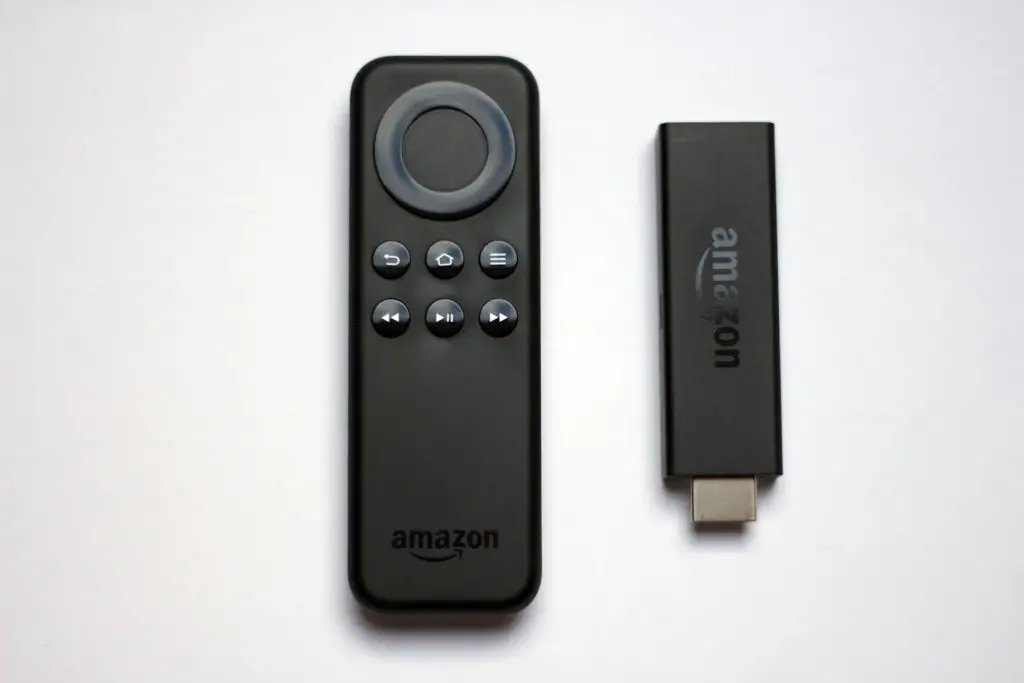
fire stick and remote
www.hdmi-experte.com [CC BY 4.0 (https://creativecommons.org/licenses/by/4.0)]

Steps to Pair Your Firestick Remote:

For the Standard Remote:

  1. Check the Basics: Ensure the batteries are properly inserted and the remote has power.
  2. Proximity: Bring the remote within 10 feet (3 m) of the Firestick device.
  3. Wait for Connection: Often, the remote automatically pairs during setup. If not, press and hold the home button for about 10 seconds. This should initiate the pairing process.

For the Voice Remote:

  1. Similar check: Confirm the batteries are correctly inserted and the remote has power.
  2. Voice Remote Pairing: Hold down the Home button for about 10 seconds to initiate the pairing process.
  3. Follow On-Screen Prompts: Your TV screen will guide you through the pairing process.

Pairing a Replacement Remote:

If you’ve acquired a new remote or a replacement, the pairing process remains quick & easy:

  1. Locate Settings on your Fire TV
  2. Tap Controllers & Bluetooth Devices.
  3. Select Amazon Fire TV Remotes.
  4. Tap and Hold the Home button for 10 seconds to pair your replacement remote.

Using Your Phone as a Remote:

Did you know you can use your smartphone as a Firestick remote? Here’s how:

  1. Download the App: Install the “Amazon Fire TV” app from your phone’s app store.
  2. Connect to the Same Network: Ensure both your phone and Firestick are connected to the same Wi-Fi network.
  3. Follow the App Instructions: Open the app, select your Firestick device, and follow the app’s prompts to control your Firestick.

What do I do if this doesn’t work?

If you are still experiencing pairing issues, try restarting both your Firestick and TV and trying again. If it still isn’t pairing it could indicate a hardware issue.

Also, check that your batteries have power and maybe switch them out to see if it makes a difference.

If there is any possibility that the remote could be damaged then you may have no choice but to buy a replacement.

LG 55UM7510PLA TV review: From stunning resolution to audio and price

0

LG Electronics is a world-renowned company which goes back over 50 years. From home appliances to smartwatches, mobile phones to televisions, LG pretty much offers it all.

We take a look at the LG 55UM7510PLA TV. In our eyes, it’s a great addition to LG’s current selection of TVs and can compete with any other 55-inch screen on the market.

With tonnes of TVs to choose from, it can be difficult to know which model to go for. But there’s no need to fret as we’re on-hand with an all-round review including the TV specs.

Let’s take a look at whether the LG 55UM7510PLA TV is right for you…

What do we like about the LG 55UM7510PLA?

LG SIGNATURE OLED TV W

The 4K resolution really sets the bar for picture quality with the LG 55UM7510PLA. It even has local dimming for deeper, darker colours.

Being a smart TV, this LG model can connect to the internet, allowing you to browse the likes of Netflix and Amazon Prime Video with ease.

Readily equipped with Google voice assistant and its AI partner ThinQ, the TV can even make recommendations on shows or films you might enjoy.

Additionally, colour accuracy technology helps bring the screen to life with a lot more colours at its disposal than its counterparts without active HDR.

A smart telly, with access to all your favourite series as well as vivid colour – what more could you want?

Why should you consider another TV?

The LG 55UM7510PLA sees two built-in speakers combined to give 20W of total power output. This is usually enough unless you’re a little further from the TV, so the sound could be a slight issue with this model.

If you do buy this TV then maybe consider buying some external speakers like these to go with it.

The build quality isn’t the best with this LG TV, but it’s far from bad so this shouldn’t put you off, it’s just something to be aware of.

If the LG 55UM7510PLA isn’t for you, here are some similar TVs

The LG 55UM7510PLA is priced at a very reasonable £475 on Amazon and comes with smart Freeview.

Samsung has a competing product in the 55-inch RU7100 which is on offer at £432 with many of the same features as the model above.

But, if you want to stick with LG, they also have the 55UM7100PLB 55-inch TV priced at £479 which has infinitely better sound quality than the LG 55UM7510PLA.

Overall, whichever TV you go for, you’re unlikely to be disappointed with the product you receive as they’re all quality TV sets and offer great value for money.

Here’s how to add the BT Sport app on to your Amazon Firestick

The Amazon Firestick is relatively new technology and a commonly asked question is how to add the BT Sport app on to your new device.

It’s a relatively simple process and once you understand how to do it, you’ll be able to add any number of apps.

BT Sport is one of, if not, the premier sports coverage network in the UK and no one provides more opportunities to watch the sports you want to.

In our eyes, it’s a must-have app and is well worth the low monthly cost that BT charges for its service.

Read on as we tell you how to install the app in just four simple steps!

fire tv stick logo
Amazon.com, Inc. [Public domain]

What is the BT Sport app and why should you install it?

The BT Sport app is one of the leading sport content providers in the UK with, arguably, the best coverage.

You can watch live or on-demand hundreds of different sporting leagues and competitions.

A paid subscription is needed to watch BT Sport but it is well worth it if you’re an avid sports fan as there is nowhere that gives you as many viewing options.

There are a number of different packages for you to choose from and you can view them online here.

How to get the BT Sport app on your Firestick in four easy steps

  1. Turn on your Firestick and navigate to the Amazon app store.
  2. There you will find a range of apps for you to download, search for “BT TV App.”
  3. Click the app icon, select “Download” and this should immediately begin installing.
  4. Once the app has finished downloading you should be able to launch immediately or find it on your home screen.

What other apps can you get on your Amazon Firestick?

For safety when using your Firestick you can download ExpressVPN to guarantee your privacy.

You can also find all the big streaming services such as Netflix and of course, Prime Video.

With the Firestick there a lot more niche apps such as Crunchyroll which specialises in Japanese anime.

Although, not just a TV platform, you can download Spotify and play music through your TV, perfect if you’re hosting a party or get-together!