Home Blog Page 7

How To Get Netflix On Older Sony Smart TV: Here’s How To Get The App

0

Are you wondering how to get the Netflix streaming app on your older Sony smart TV? Can you download other streaming apps on your Sony TV, but Netflix does not appear in your TV’s app list or Google Play Store?

Netflix has a ton of entertainment content for you to enjoy but vary depending on your region. The popular streaming app is available on smart TVs, streaming media players, gaming consoles, set-top boxes, Blue-ray players, smartphones, and PCs.

You can download and install the Netflix app on your Sony smart TV, but is it true for an older model? This article will explain whether your TV supports the Netflix app, how to install it, and what are the alternative ways of streaming Netflix content on your older Sony Smart TV.

Can I add apps to my older Sony smart TV?

tv apps

You can add apps to your older Sony smart TV in the following ways.

  • A few older Sony smart TVs have a dedicated Apps section. The Apps section lists the streaming applications that comes by default with the TV set. Here, you can enable or disable a particular app.
  • If your older Sony smart TV with an Android TV software, you download and install a particular app through Google Play Store.
  • You can also use your older smart TV internet browser to directly download and install an app from the developer’s website.

How do I get Netflix on my older Sony TV?

Netflix screen on tv

If your older Sony smart TV supports the Netflix app, it will show under the default system apps.

Press the Home button on your Sony remote to access the Home menu to enable the app. Next, head towards the Apps section and then select System apps. Here, you will see the Netflix app. Highlight the app and select the Enable option from the sub-menu. Now, the Netflix app will show on the list of apps on your Sony TV home screen.

If you have an older Sony TV with Android software, open the Google Play Store and type in Netflix. Next, click on the app and choose the Install option. Afterwards, launch the app and enter your Netflix login credentials to stream content right away.

A few older Sony smart TVs may or may not support the Netflix app. However, you may need to perform additional steps to confirm whether your TV can stream Netflix content. To do this:

  • First, factory reset your older Sony smart TV.
  • Next, set the date and time accurately on your TV.
  • Check the condition of your internet connection by performing a network diagnosis process.

Afterwards, you need to update your TV software and see if the Netflix app shows up under system apps or Google Play Store. To do this:

  • Select the Settings option from Sony TV’s Home screen menu.
  • Now head towards the Customer Support option or Product Support option.
  • Next, select Software Update and choose your Network.
  • Press OK or Yes to update the TV software.
  • Finally, restart your TV and see if you can get the Netflix app.

Why can’t I get Netflix on my Sony TV?

Netflix tv and remote

If you have updated your older Sony smart TV software and the Netflix app is not visible either in the Play Store or system apps, it means that your TV is not compatible with Netflix.

As already mentioned, the Netflix app comes by default on compatible Sony smart TVs. The company announced in 2019 that the TV models before 2011 won’t stream Netflix content due to technical limitations.

How can I watch Netflix on my old smart TV?

remote control and usb stick

If your older Sony smart TV does not support the Netflix app, you can still stream its content on the TV by the following methods.

Use a Chromecast device

You can use your computer or mobile phone to cast the Netflix content to your Sony TV. A few older smart TVs have a built-in Chromecast option. However, if your TV doesn’t have that option, you can buy a Chromecast device and cast through it. To do this:

  • Connect the Chromecast streaming device to your older Sony smart TV.
  • Launch the Netflix app on a mobile device or use a browser to open the Netflix website.
  • Next, tap the cast icon on the Netflix app on mobile or go to More –> Cast on a PC browser.
  • Now select your device from the Cast menu and play a programme to watch it on your TV.

Connect your PC to Sony TV

You can stream Netflix content directly from your PC by connecting it to your TV with an HDMI cable.

To do this, hook one end of the HDMI cable to your PC HDMI port and the other end to the TV HDMI port. Next, sign in to your Netflix account on your PC and play and movie or a TV show. Finally, choose the HDMI channel on your TV and start enjoying Netflix content.

Buy a streaming device

If Netflix is unavailable on your older Sony smart TV, you can buy a Roku or Amazon streaming device. Simply plug the streaming device into the HDMI port of your TV set. A few streaming devices have a separate power cable, while others power up from the USB port on a compatible TV.

Most new Roku and Amazon Firestick devices have a Netflix button on the remote to launch the app directly on your TV. After connecting the device to the older TV, turn on the HDMI channel and press the Netflix button on the streaming device remote. Next, log in with your Netflix credentials and start streaming the content.

Conclusion

Hopefully, this guide helped you on how to get Netflix on an older Sony Smart TV. If your TV supports the Netflix app, you can find it under the Apps section.

However,  if you have a TV model older than 2011, the Netflix app won’t be compatible to run on it. In this case, you can use an HDMI cable, streaming device, or Chromecast device to enjoy Netflix content.

Sky Q Mini Keeps Losing Connection To Sky Q Box: Here’s How To Fix It

0

Are you using a Sky Q Mini box at home but often at times it keeps losing connection with the main Sky Q box? Does the issue occur with single or multiple Q boxes? This article will explain why there is a connectivity issue between the two devices and how you can fix it.

You can connect your Sky Q Mini box or boxes to your main Sky Q box to get full access to Sky features, recordings, live TV, or on-demand content in multiple rooms of your home. Sky Q Mini can only show picture quality in 720p HD compared to the main Sky Q box that can support full HD and 4k Ultra HD resolution.

Users report that the Sky Q Mini box stops the programmes numerous times a day and displays a connectivity issue between the Mini and the main box. If the users wait a bit, the connection reestablishes until the same problem happens later.

Why does Sky Q mini keep losing connection to the main box?

sky q box and remote

Sky Q Mini box can keep losing connection to the main box for the following reasons.

  • Sky Q Mini box is not connected to the main box properly.
  • The Mini Q box is too far away from the main box.
  • The power and HDMI cords on the back of the box or TV are loose.
  • Sky Q Mini box is not connected to the same WiFi network where your main Sky Q box is connected.
  • Sky Q box standby settings are causing a delayed connection with the mini box.

How do I connect my Sky Q Mini to the main box?

router and tv diagram

Sky Q Mini box might lose connection to the main Q box if it is not set up correctly. To check the whole setup:

  • Plug one end of the HDMI cable into the pink port of the Sky Q Mini box and plug the other end into your TV.
  • Now, connect one end of the power cable to your Mini box and the other to a power supply.
  • Next, switch on the power supply button and press the Home button on Sky Q Mini remote to power up the box.
  • Press and hold 1 and 3 buttons on the remote until you see four flashing lights.
  • Select the “Continue” option and enter your TV manufacturer’s name.
  • Wait for the volume to change before pressing the Continue option again.
  • Locate and press the Select button on the Sky Q Mini remote.
  • Head to the Mini box, hold down the WPS button, and wait for the box to start flashing an amber colour.
  • Wait for a few minutes for the setup to complete the WPS connection process.
  • Finally, scroll through some channels and verify that everything looks good.

How to fix Sky Q Mini connectivity issues?

connection to sky q box

If your Sky Q box is appropriately connected to the Sky Q Mini box or boxes, but the intermittent connection loss issue persists, try the following troubleshooting steps.

Check HDMI and power cable

The first thing to do is to check the HDMI and power cables. Sometimes, either the cords are loose or physical damage to them is causing connectivity issues to the main box. Furthermore, check the HDMI input on the back of your TV and verify that the cables are inserted into the correct HDMI port.

Use same WiFi for Sky Q Box and Sky Q Mini

The Sky Q Mini box is a device that extends Sky content to other rooms and is dependant on the main box configurations. To make the setup work: connect the main Sky Q box to your router via ethernet cable or WiFi.

Afterwards, connect the Sky Q Mini box to the same network as the Sky Q box. You have to use the main box WiFi mesh to establish a similar broadband connection with the Mini box. However, if you are using Sky broadband, you can run an ethernet cable from your router to the mini box as well.

Reactivate connection

Try reactivating the connection between the Mini and the Main box to fix the connection issue. To do this:

  • Access Sky Q mini Settings and select the “Connection to Sky Q box” option.
  • Now choose the option that displays the “Reactivate” option.
  • While the mini box hardware is reactivating, head to the main box, access its Settings, and select “Reactivate Watching via Mini.”
  • Finally,

When the reactivation process completes on both mini and main boxes, you need to power cycle both devices. To do this, shut down the boxes and wait for one minute before powering them back on. Finally, verify that the connection established message is displayed on the Sky Q Mini box.

Use a Sky WiFi booster

Use a Sky WiFi booster

Try installing a Sky WiFi booster if the above troubleshooting steps fail to fix the connectivity issues between the Mini and main Sky Q box. A Sky WiFi booster can enhance the connection of the Mini Q box to the primary Q box by extending the WiFi signals range in different areas of your home. Although the Sky WiFi booster can improve WiFi coverage; however, it does not improve the broadband speed in your home.

Why does my Sky Q Mini Box keep disconnecting at night?

standby mode

According to Sky, you can experience nighttime connectivity issues with the Sky Q Mini box if the main Q box is switching itself to standby. You need to set the Sky Q box’s Eco or Active mode to None to fix the problem.

To do this, go to the Settings menu of your Sky Q box. Next, select the Setup option and choose the Preferences menu. Under Standby Mode settings, select None and save settings. Now you won’t experience the Sky Q Mini box connectivity issues at night.

Conclusion

You don’t have to be a tech-savvy person to fix most Sky Q box issues. If Sky Q Mini keeps losing connection with the main box, this guide has the best troubleshooting steps to guide you all the way. However, you can also contact Sky Support for further guidance.

Sky Glass Activation: How To Activate The Subscription Service

0

The latest innovative piece of technology from Sky is their Sky Glass TV. The streaming TV which you can watch boxsets, Sky TV and apps without having the additional fuss of different packages. The TV has all you need built-in. If you are unable to get an ariel on your roof this is an easy to use alternative.

However, when you’re setting up your Sky Glass, you may encounter some errors, especially when it comes to Sky Glass activation. Therefore we have created a guide to help with all things Sky Glass and how to troubleshoot any errors you may come across.

What is Sky Glass?

sky glass activation

Sky Glass is a streaming smart TV created by Sky. Which includes Sky Ultimate TV, Netflix, and a TV. With motion sensors built-in, it provides users with an easy way to turn on the TV and start viewing right away. With a new and innovative way to watch tv with ease.

The TV itself is carbon neutral so ideal for helping the planet whilst still being able to watch your favourite shows.

Sky Glass Activation how to do it

tv screen with jellyfish

If your Sky Glass has arrived but you are unsure of how to activate your new piece of kit, here’s all you need to do in order to set up your new TV. Please note this needs to be done via the account holder, else you will be unable to do activate the account. If you are the account holder here’s what you need to do:

  • Head to Sky.com/activate
  • Enter your 6 digit code provided
  • If your code times out, you will receive another code after 30 minutes.
  • Once you have done this, your Sky Glass will be active.

How to fix unable to activate my Sky Glass

There are numerous reasons why your Sky Glass was unable to be activated.

In order to fix the linking issue regarding your Sky Glass, here are some simple troubleshooting techniques to try.

Linking unsuccessful. Please try again later

When entering the code to activate your Sky Glass, entering this code incorrectly will create an error which states ‘Linking unsuccessful. Please try again later.’

You can try entering this code again after receiving the error.

No Broadband

If your Sky Glass is unable to connect to the broadband, you will be unable to watch the TV. If you are setting it up for the first time or you are experiencing dropouts, you need to do the following steps in order to get it up and running again.

  1. Head to the router in your home
  2. Unplug the router from the mains
  3. Allow a few minutes for it to restart before plugging it back in
  4. Then wait for the lights to turn back on.

Sky Glass keeps crashing

If you find your Sky Glass keeps crashing, we’d recommend rebooting your device. Here’s how to do this:

  1. Put your Sky Glass or Stream Puck on standby
  2. Switch off your Sky Glass or puck at the mains – no need to remove the cables
  3. Next, turn the device back on and wait a few minutes for it to start up again. Once you see the home screen, you’re good to go.

Linking unsuccessful. You have reached your device limit

If you purchase the Sky Glass, you will also receive pucks which are a small device that allows you to watch Sky Glass on any TV in the house. You are only able to have six Sky Stream pucks per account. If you are trying to use more than six or link another TV this error will occur.

If you are still having issues activating your Sky Glass, reach out to Sky who will be able to advise further as this may be an error on their end.

What are the pros and cons of Sky Glass

Pros of Sky Glass:

  • The world’s first TV to be certified as Carbon Neutral
  • Arrives with no plastic packaging
  • It’s an all in 1 device
  • The TV comes in a range of colours such as pink, blue and black
  • There are 3 HDMI ports

Cons of Sky Glass:

  • You need fast broadband for it to function
  • Additional costs for packages
  • You can’t record programmes
  • Fewer channels available than other Sky products such as Sky Q

Can I get Sky Glass if I am an existing customer?

Yes, all customers of Sky can get a Sky Glass package. However, if you are currently in a contract with Sky you will need to finish your contract or have a second one running alongside it.

If you are a new customer you can join via Sky directly.

To get the most out of your Sky Glass a TV subscription is required, you can match this to what you are going to watch, but it’s worth factoring it into the final cost.

Do I need an aerial for Sky Glass?

The Sky Glass doesn’t require an external box or an aerial in order to work. This makes the Sky Glass more portable and easier to use wherever you are. The Sky Glass also does not require an engineer to install the box as it is already set up and ready to go once plugged into the mains.

Is Sky Glass expensive?

The Sky Glass has different price points depending on the size of the TV you choose and also how you pay. The prices for Sky Glass do not include Sky TV packages, so if you’re looking for certain channels this is added on top. The 43″ is £649, the 55″ is £849 and the 65″ is £1,094. Although you can pay monthly for the TV if required.

Conclusion

We hope this troubleshooting guide has been helpful when activating your Sky Glass. However, if you are still unable to activate your Sky Glass? We’d recommend contacting Sky in order to get this resolved. As you may have a faulty device or require a further software update.

Where Can I Watch SK8 The Infinity: Is Funimation The Best Option?

0

Many anime fans are wondering where to watch SK8 The Infinity, and most probably, they’ll end up streaming this shounen sports comedy series on the Funimation streaming service. However, many users want to explore other streaming services that offer SK8 Infinity dubbed content.

Funimation is operating under the Sony entertainment company and deals in the distribution of various anime series. The company leads the way for anime dubbing and has a track record of dubbing the content in English quickly.

This article will show you whether or not you can watch the show free on Funimation. We’ll also discuss if Funimation paid subscription is good enough to spend money on it. But first, let’s find out what is SK8 The Infinity is.

 What is SK8 The Infinity?

sk8 infinity drawing

SK8 the Infinity is a popular shounen sports comedy animated series, it’s directed by Hiroko Utsumi. Furthermore, Toriyasu’s manga Sk8 Chill Out! is the inspiration for the show. After months of anticipation, the anime series SK8 the Infinity will finally premiere on Japanese television – and international streaming. 

However, the new anime follows a bunch of high school skaters who become hopelessly addicted to “S,” a no-holds-barred downhill skating event held in a discarded mine. SK8 the Infinity have success in Japan and worldwide, thanks to its A-list producer lineup (including Hiroko Utsumi and the famed studio Bones) and fast-paced development.

SK8 the Infinity Release Date in the USA?

A streaming service that gives users worldwide early access to anime hits. According to the show’s official website, beginning 10 January 21, SK8 the Infinity will be available on Funimation in the United States and other countries.

Where can I watch sk8 the Infinity: is the best option?

fumigation image

SK8 The Infinity show is currently accessible to stream on Funimation. You can enjoy watching all 12 episodes of the inaugural season are free in Japanese with English subtitles. SK8 The Infinity has a fantastic English dub on Funimation, but you’ll need to join up for a premium account to see it. 

The subscription starts at $5.99 per month after the free trial, but you can cancel at any moment. You can watch on your mobile device, computer, or streaming device. The following devices are compatible with the Funimation App:

Streaming Devices: Apple TV, Roku, Android TV, Amazon Fire TV, and Chromecast.

Mobile: iOS, Android, and Amazon Kindle.

Smart TV: Amazon Fire TVs, Roku TVs, LG smart TV, Samsung smart TV.

Gaming consoles: Xbox One, Xbox Series X, PS4, and PS5.

Where can I watch SK8 the Infinity other than Funimation?

tv programs

You can watch the SK8 the Infinity only on Funimation. The easiest method to watch SK8 the Infinity for those outsides of Japan is to have a Funimation membership. Premium ($5.99/month for two simultaneous streams), Premium Plus ($7.99/month for five concurrent streams and offline downloads), and Premium Plus Ultra ($99.99/year for a range of extra features) are among the membership levels offered by the anime-centric streaming service. 

Is SK8 the Infinity on Hulu?

The SK8 the Infinity is not available for stream on Hulu. Still, you can watch any alternative amine show on Hulu that is freely available to entertain its customers.

Is SK8 the Infinity on Amazon Prime?

You can’t stream the show on Amazon prime. This online streaming platform users can choose a better alternative to entertain themselves, such as you can watch the Hitorijime My Hero, Bakugan Battle Brawlers, and many more.

Is SK8 the Infinity on Netflix?

Sadly, Netflix doesn’t have the SK8 the Infinity show for now, but maybe they will have the show’s library in the future. 


We always suggest our readers pay for the content they watch, and there are moments when some viewers do not want to make a financial commitment and prefer to enroll in a first-time new sequence. However, the streaming platform provides 14-day free trial, which is more than enough time to watch the entire series. They will not charge you if you withdraw/ cancel within your trial period. 

Create Free Funimation Account

  • First, visit the Funimation website and click on the Blue Watch Now button.
  • Once the new page appears, scroll down to the bottom and choose the plan.
  • After deciding plan, click on the Start My Free Trial button. 
  • You need to fill in the complete information such as name, email, etc., and click the Continue button. That’s it!

What can I watch with Free Funimation account?

The anime streaming service has over 600 series, but you can only watch a few of them with a free subscription. The titles offered for free viewing are mostly older releases, with trailers or sneak peeks for newer content available.

Some recent series, such as Skate-Leading Stars and Tamayomi: The Basketball Girls, have the first one or two episodes available for free, but after that, you will need to pay for a subscription to enjoy watching the rest of the episodes.

Anything that requires a paid subscription has a red subscribe button in the top left corner of the thumbnail, making it simple to figure out what you have access to and what you don’t.

Is it worth subscribing to Funimation?

premium plan

If you’re new to anime lovers and want a taste of the genre, a Funimation free account might be adequate. Before committing to a monthly subscription, you may get a feel for the type of programming that Funimation offers and see if you like it. On the other hand, a premium subscription is worth it if you’re an anime lover and want access to binge-worthy anime. 

Some specific episodes aren’t dubbed in English with a free subscription, but this is only on a few episodes from what we’ve seen. There are English subtitles, so it may not be significant for most people.  

Conclusion 

Hopefully, this article helped you explain where to watch SK8 the Infinity and why the Funimation is better for show lovers. However, if you have any other streaming platform subscription, you can watch the alternative shows. Otherwise, signup 14 days free trial on Funimation, feel the experience and enjoy your favorite shows. 

Heres How to Connect Your Xbox Series X To A Hotel Wifi

0

Due to a boom in the esports industry, numerous people have started travelling with their consoles to vacations. This makes it difficult for front desk managers to connect Xbox Series X to their Hotel Wifi. Every hotel keeps its Wifi protected; therefore, connecting a new device is never straightforward.

In this guide, we will look at the steps that will help you connect to your hotel’s Wifi and get back on your game in no time. While travelling, make sure to keep these items with you; HDMI Cable, Power Cable, Console, Controller, Games you play often, and Wifi details.

The Xbox controller uses disposable batteries; make sure you keep extra batteries or buy a rechargeable battery case before leaving for your vacation.

Steps to Connect to Hotel Wifi

add wireless network

Some hotels have started offering contactless check-in due to the pandemic. When gamers go through this process, they may not get a chance to ask the front desk about the Wifi details or the instructions on how to connect to the room entertainment system installed by the hotel. In this case, the Hotel removes the password and inserts an authentication landing page. The guest enters all of the required information that validates their reservation at the hotel. 

This authentication method stores the MAC addresses of every device that connects to their network. A MAC address is a unique 12 character code assigned to every device that can connect to a web. 

This authentication method may seem like it’s difficult; however, connecting your Xbox Series X to the Wifi is easy enough. Just follow these steps: 

  1. Power on your Xbox Series X console. 
  2. Select the “Settings” app on the home screen and navigate to the “Network” option.
  3. Now, scroll to the “Set up wireless network” option and select “Connect to a new network”. 
  4. Find the name of the hotel’s name in the list of connection options and select it to start the connection process. 
  5. Enter all of your reservation information to complete the authentication procedure. 

After completing all of these steps, your Xbox Series X console will automatically connect to the Hotel Wifi as long there is no ambiguity in the reservation information you entered. It’s important to keep your console free from issues so that you can play your favourite games without interruption. 

Troubleshooting the connection while connecting to the Wifi

wireless connection screenshot

In case the above process did not work as some hotels discourage the use of gaming consoles. With the help of additional steps, you can trick the hotel network into thinking that your Xbox Series X is a device that was has been properly authenticated and will be granted internet access immediately. Here is how you can do it.

iPhone

Follow these steps to find the MAC Address of your iPhone:

  1. Connect to the Hotel’s Wifi network from your iPhone. 
  2. Insert all relevant reservation information to complete the authentication process.
  3. In the Settings App, scroll down to General.
  4. Tap on the About option. 
  5. Continue scrolling till you come across “Wi-Fi Address”. This is your iPhone’s MAC Address.
  6. Copy Wi-Fi Address
  7. Disconnect your iPhone from the network.

Android

Follow these steps to find the MAC Address of your Android device:

  1. Connect your Android device to the Hotel’s network. 
  2. Insert all relevant reservation information to complete the authentication process.
  3. While still being in the Settings App, scroll down to About Device.
  4. Select the Status option. 
  5. Find the Wi-Fi MAC statement. 
  6. Copy it.
  7. Disconnect from the network.

Windows Phone

Follow these steps to find the MAC Address of your Windows Phone: 

  1. Connect your Windows Phone to the Hotel’s network.
  2. Insert all relevant reservation information to complete the authentication process.
  3. In the Settings App, scroll down to System. 
  4. Click on the About button. 
  5. Select the “More” option and scroll down to the MAC Address. 
  6. Copy it.
  7. Disconnect from the network.

Windows Laptop

Follow these steps to find your MAC Address if you’re using a laptop running Windows 10:

  1. After connecting to the Hotel’s network and completing the authentication process, open Control Panel.
  2. Select Network and Sharing Centre. 
  3. Now, find the Change Adapter Settings. 
  4. Right-click on the Wi-Fi adapter and select status. 
  5. Copy the Physical Address as this is your MAC Address. 
  6. Disconnect your laptop from the network. 

MacBook

Follow these steps to find your MAC Address on your MacBook: 

  1. Connect to the Hotel’s network and complete the authentication process. 
  2. Click on the Apple icon on the top-left corner. 
  3. Select System Preferences from the drop-down menu. 
  4. Click on the Network option. 
  5. Select your Wi-Fi Adapter and click on Advanced.
  6. In the end, your MAC Address will be listed as Wi-Fi Address or Airport Address.
  7. Copy it. 
  8. Disconnect from the network. 

Back to your Xbox

Now, move to your Xbox Series X to spoof your Xbox’s MAC Address with your device’s Mac Address:

  1. Select the Settings App and go to “Network”.
  2. Scroll down to “Advanced Settings” and Select “Alternate MAC Address”.
  3. Here you will enter your iPhone’s Wi-Fi Address.
  4. Reboot your Xbox.

Now try connecting to the Wifi network from your Xbox Series X. The connection will happen instantly, as your MAC Address is spoofed and the authentication software thinks that your device has connected to the network. 

However, make sure that you avoid using your device on the network while your Xbox is on. This will alert the authentication software because it will detect two devices that have the same MAC Address. This can ban your MAC Address, and you will no longer be able to connect to the Hotel’s network ever again. 

Conclusion

To wrap things up, numerous hotels post their internet policies on their websites so that people are well-aware of their provided services before they book their reservations. In case they have using Password protection, they will provide their guest with the login details while they check in.

In case they have moved to contactless check-in and introduced Wifi authentication, then just follow the steps to connect your Xbox to the internet. However, if they do not allow Xbox on their network, you can use our guide to spoof your MAC address from the authorised devices and continue playing your favourite games without any problems. 

How to Connect PS5 to Hotel Wi-Fi: Here’s A Simple Guide

0

Carrying your PS5 with you on a trip is a terrific way to avoid boredom while you’re hanging around a hotel. When the hotel Wi-Fi isn’t particularly fast, you have to make do with what you have. This guide will show you how to connect PS5 to hotel Wi-Fi?

However, PS5 must authenticate any unknown Wi-Fi before it can connect, which needs you to go through the settings on your PS5 to set up the connection. You will need to connect to the hotel’s Wi-Fi through your phone to complete the configuration process.

Setting up a PS5 to a new Wi-Fi network can be difficult, but a bit of patience and information will fix the issue. Make sure you have the hotel’s Wi-Fi login and password, as well as an HDMI cable, controller, console, and power cable before you begin. However, continue reading to learn how to connect your PS5 to hotel Wi-Fi.

How do I connect my PS5 to hotel WiFi?

playstation controller and tv

To connect the PS5 to the hotel Wi-Fi, here are some easy to connect PS5 to the Wi-Fi:

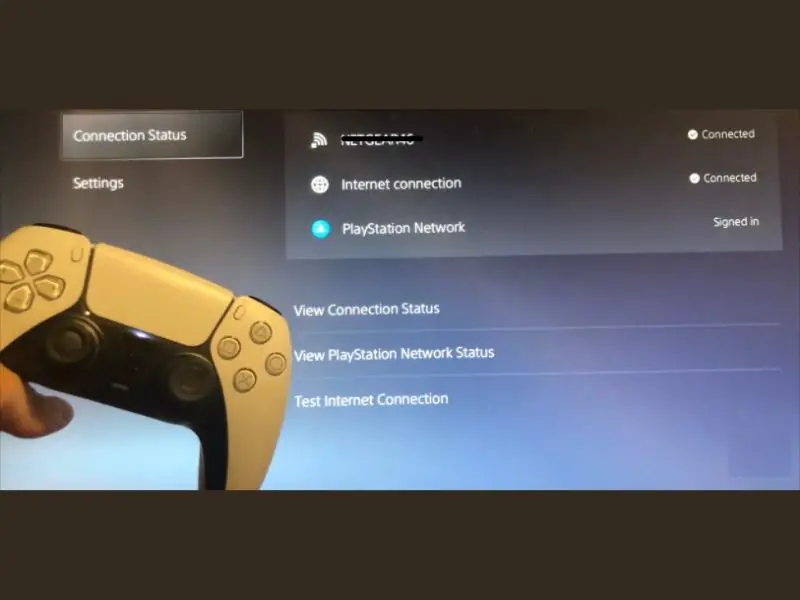
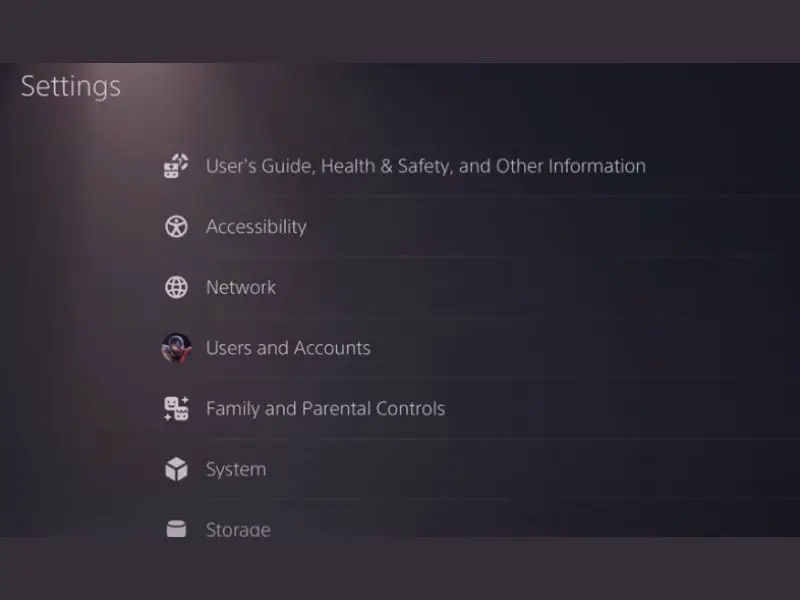
  • First, navigate to the Network Settings from your PS5 Settings.
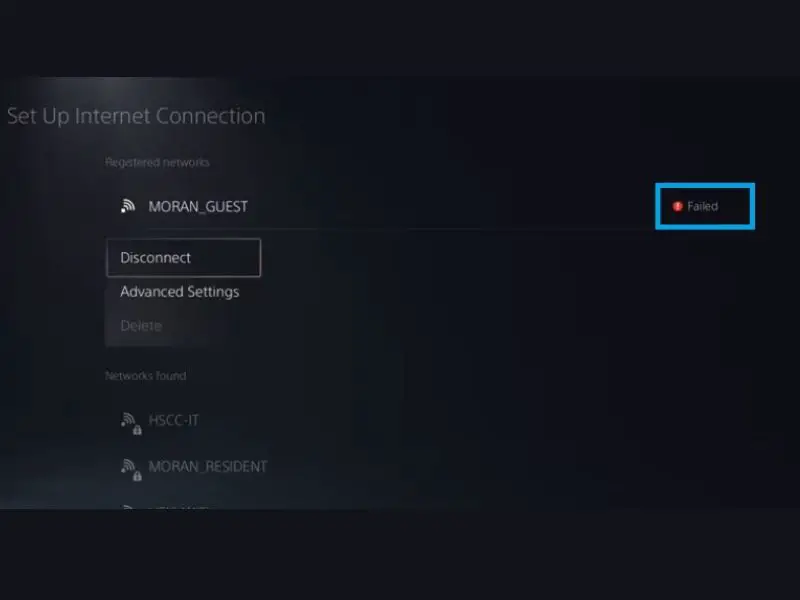
  • Now, you need to click on the Set Up an Internet Connection option under the Network Settings.
  • After that, contact your mobile phone to your PS5. Open your mobile phone and click on the Wireless Network that your PS5 uses, like PS5-765.
  • Once you click on it will ask you for a password. Enter the password and click on Connect.  
  • Sign in to the Wi-Fi network will appear, and this will connect your PS5 to the hotel Wi-Fi network; enter the password to connect.

You’ve successfully authenticated the hotel’s Wi-Fi with your phone, and it should now connect your PS5 and be everything ready to game or stream.

Why can’t you connect your PS5 to hotel Wi-Fi?

wifi settings

If your PS5 is not connecting to the hotel’s Wi-Fi, check the password is valid. If you’re confident you typed the correct password, try restarting the console, but make sure it’s not in Rest Mode. The issue may be caused by a DNS error, in which case you’ll need to update your PS5’s DNS settings.

Unfortunately, specific connection issues can occur when you are not close enough to the network or when too many people are attempting to join at the same time. You need to wait and try connecting again later because there are some minor problems with the hotel’s Wi-Fi.

Does the PS5 have its own Wi-Fi?

inside of playstation

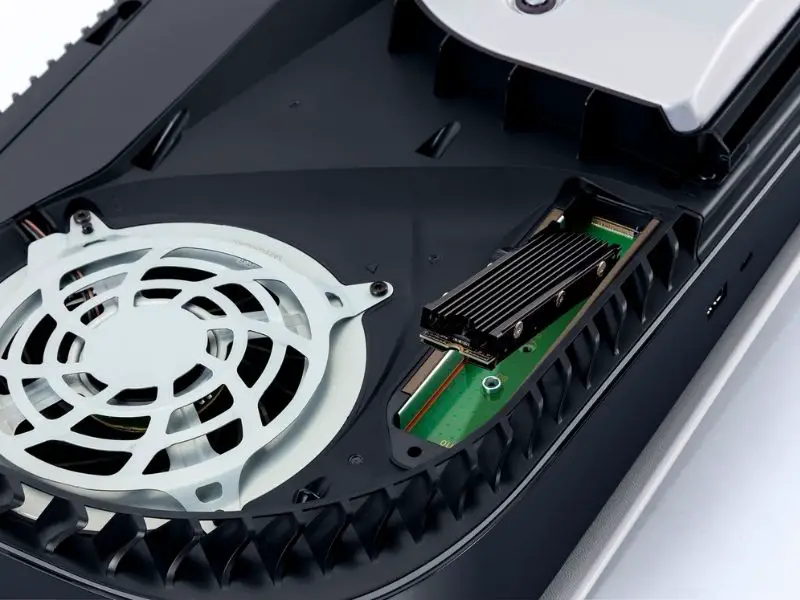
The Playstation5 comes with a Wi-Fi 6 network card that supports 22 MU-MIMO wireless transmissions and Bluetooth. At the same time, this indicates that all PS5s can connect to Wi-Fi without any modifications.

 It does not imply that a PS5 can connect to the internet without using a router. If you require to utilize online features, you’ll still need to connect to a local Wi-Fi network.

How do I change the Wi-Fi frequency of a PS5?

settings page
  • First, Turn on the PS5 and log in to your account to access the Main Menu.
  • Open the Settings and click on the Network Settings> Set Up Internet Connection.
  • Once the system has completed its scans, click on the Options button and get the Popup menu. 
  • After that, select the Wi-Fi Frequency Bands to modify the frequency to 5GHz.

Now, return to the main menu to check the change will automatically work. But sometimes, it may take a few minutes to complete. If it does not automatically complete the change, you may need to restart the PS5 or remove and rejoin the Wi-Fi network. Keep in mind that the 5GHz setting is a global setting for your Wi-Fi connections so that future connections will also use it.

Is PS5 2.4 GHz fast for gaming? 

For high-bandwidth activities like gaming and streaming, you should aim for around 5GHz. 5GHz offers faster speeds and better performance, as well as a reduction in gaming lag. Because it provides a more extended range at the expense of performance, 2.4GHz is better suited for low-bandwidth tasks like browsing the internet.

Can I change PS5 to 2.4HGz?

PlayStation5’s are set to automatic by default, which means they will utilize the best Wi-Fi option available based on the network to which they are connected.  However, you may force your console to use 2.4GHz or any other frequency. To do this, you need to navigate to the Wi-Fi settings and select the “2.4GHz” option. If you desire the best performance and speed for gaming or streaming, you can achieve this with 5GHz.

Is the 2.4 or 5 GHz best for PS5?

The PS5 can support 5GHz, but there is no guarantee that it will connect automatically. Depending on the Wi-Fi connection’s capabilities, the PS5 will check for a connection, determine whether to use 2.4GHz or 5GHz, and choose the best frequency for the batter gamming experience. 

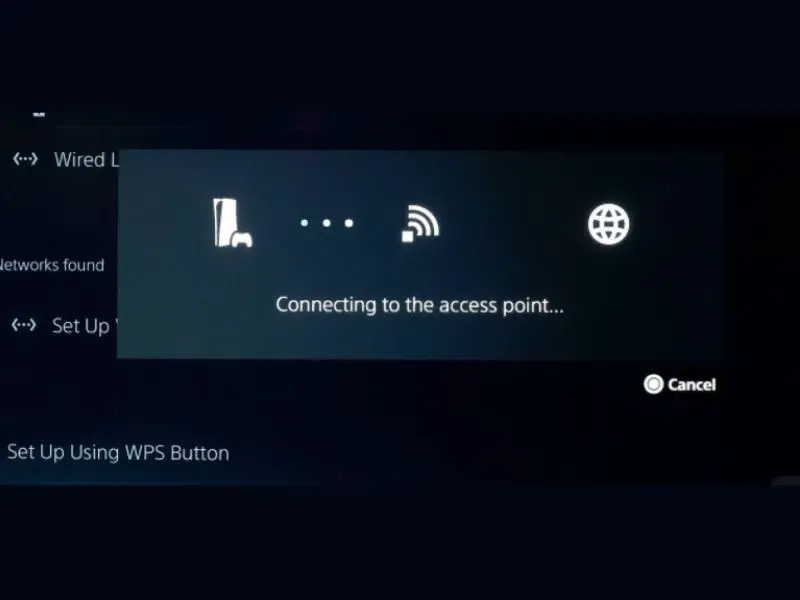
Can I use a WPS pin on PS5?

connecting to access point. playstation to playstation

On a PS5, you can use a WPS pin, but only if you’re connecting to your router, as you’ll need to click on the router’s WPS button to build a connection. Moreover, to support your PS5 in finding the connection correctly, a WPS requires you to be close to the router. It is a great idea to stay connected at home, but not in a hotel.  

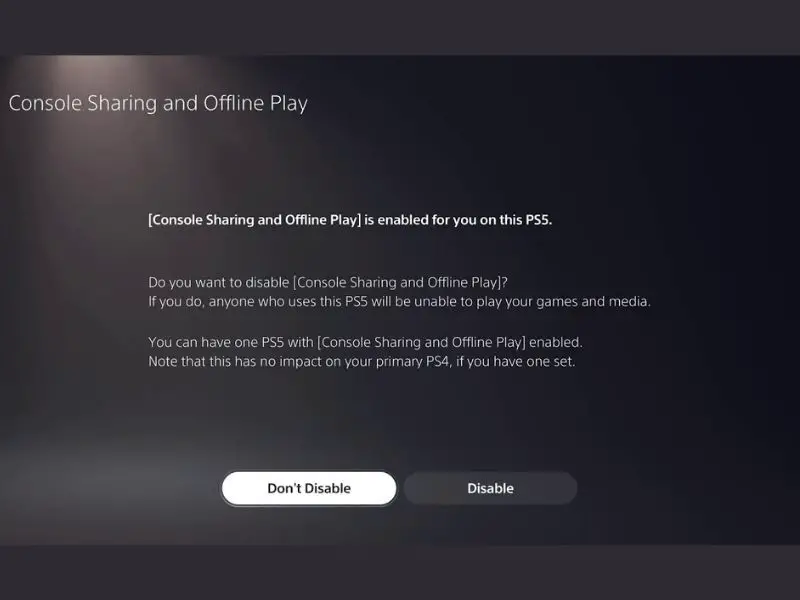
Can I play downloaded PS5 games offline? 

console sharing and offline play ps5

On one PS5 system, you can enable Console Sharing and Offline Play at a time. The Console Sharing and Offline Play settings on your old or second PS5 console will be disabled if you enable the setting on a new PS5 console. Your games and media will be unavailable to other users on the disabled console.

Conclusion 

While your PS5 won’t instantly join a new Wi-Fi network, use your phone to authenticate the network. You should be able to configure the new Wi-Fi on the PS5 as long as you can connect to the hotel’s Wi-Fi using a mobile device. 

However, because hotel Wi-Fi has limitations, don’t be shocked if you can’t connect on the first try and have to try again later, or if the connection is slower than you’re used, due to a large number of people trying to connect.

Deliveroo App Not Working: Fix The Delivery App With This Guide

0

Unsure where to order your takeaway from? Deliveroo has you covered on all fronts, with a range of takeaway choices from top restaurants.

However, at times when Deliveroo is busy, the app starts to play up. Sometimes lasting only a few minutes but other times lasting for hours.

With that being said waiting that long when you are hungry is not ideal! Therefore we recommend troubleshooting the Deliveroo app. This is a great way to quickly get your Deliveroo issue resolved, so you can order your food without any issues.

If you are wondering why your Deliveroo App is not working, here are some of the potential reasons why and how to fix them.

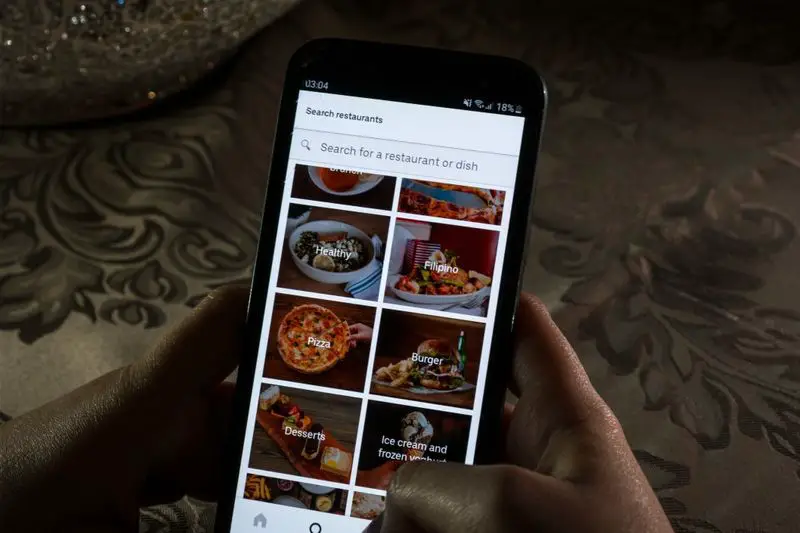
Why is my Deliveroo app not working?

deliveroo app on phone

There are many reasons as to why the Deliveroo app may not be working, therefore we have compiled a list of the most common issues with Deliveroo.

  • Unable to open the Deliveroo app
  • The Deliveroo app crashes
  • Deliveroo ‘an unexpected error occurred’
  • The app is down
  • Checkout not working
  • App won’t show restaurants

Although these are only some of the issues with Deliveroo, these are the most common issues which users experience regularly.

How to fix the Deliveroo app issue?

deliveroo app on phone

Fix 1. Update your app

First things first, making sure your app is up to date is key, if your app is outdated, it may cause issues. This is due to any potential bugs in previous versions of the app which may have been smoothed out since. Make sure you have enough storage in order to do so.

Next log out of the app, then log back in. Or if the update logged you out, then log back in.

Fix 2. Check your wifi connection

Although it may not always be obvious, our internet connection can be the reason an app isn’t working. If you notice a continuing buffer or content not loading correctly, it’s worth checking your internet connection.

If your internet is down, we’d recommend switching to mobile data in order to get a more stable connection.

If you find yourself still experiencing issues with your internet connection, we’d recommend rebooting your router. If you are unsure how to do this you may find these guides helpful to fix your wifi connection:

Fix 3. Delete and reinstall the Deliveroo app

Deleting the Deliveroo app, and then installing it again from the app store makes sure you have the latest version installed. By doing this it will pull through the newest version of the app, hopefully fixing any prior issues which were occurring.

Fix 4. Switch to mobile data

Switching from your mobile data to wifi and vice versa is a great way to figure out if your device or your router is the issue. If you find the app to work correctly on mobile data, this would provide the information that your wifi is the issue as opposed to the app.

However, if the app doesn’t work on either, we’d recommend checking the Down Detector to see if there are any known issues with Deliveroo right now. If there appear to be issues on the app and not the website, we’d recommend trying to order on the Deliveroo website.

Fix 5. Check you have data enabled on Deliveroo

This is a key step if you are attempting to order via the Deliveroo app. You may have accidentally disabled mobile data for your app, or even changed it to wifi only. In order to check this and get it fixed, here are some easy to follow steps to get this resolved.

Enable data on iPhone

In order to make sure you have data enabled, follow the below steps for more information on how to do this.

  1. Head to settings
  2. Click on mobile data
  3. Scroll down to the app you’re looking for
  4. Toggle on for that app (so it turns green)
  5. Once you’ve done this, head back to the main settings menu
  6. Scroll until you find Deliveroo
  7. Then make sure the toggle is also on for mobile data

How to enable data on an Android device

If you are unsure as to whether you have data enabled on your Android device for Deliveroo, here’s how to find out:

  1. Head to settings
  2. Choose apps and notifications
  3. Then app info and find Deliveroo
  4. Click Deliveroo
  5. Then mobile data and wifi
  6. Finally switch on background data via the toggle

Fix 6. Your login details are incorrect

Although it may seem like an obvious suggestion, checking your password and phone number are correct when logging into the app. Occasionally we may accidentally mistype our phone number or add caps in places that do not need them on your account.

If you believe your details are correct, we’d next recommend clicking forgotten password to update this.

My Deliveroo app doesn’t open without crashing, what do I do?

If you’re attempting to open your Deliveroo app but it keeps crashing, we’d recommend making sure your app is up to date, followed by restarting your phone. By doing this it enables the latest version of software to be installed.

Why does my discount code not work on Deliveroo?

Unfortunately, the use of discount codes on a website doesn’t always go to plan. Therefore if you are experiencing issues with a discount code, we’d recommend checking the terms and conditions of the discount code. If the discount code matches the criteria, it’s recommended to go to the issuer of the voucher who will be able to provide more of an insight into this issue.

Can I order on the Deliveroo website?

deliveroo cyclist

Deliveroo does indeed have a website from which you can order, although it is not as quick and easy as the mobile app, it serves as an alternative. Especially when the Deliveroo app is not working.

Conclusion

Although Deliveroo is a great app, it doesn’t come without its faults. With so many restaurants to enjoy, the app is essential for takeaway at home. However, we hope this guide has helped to resolve any issues you may be having with the Deliveroo app.

My Keyboard Is Not Working On My Laptop: Fix The Keypad Here

0
Are you wondering why my keyboard is not working on my laptop? Does your keyboard produce different letters than the keys indicate, or don’t the keys work at all? This article will show you why these issues occur and what you can do to fix them.
A laptop keyboard is an input device built-in into the system. It is the same as the standard keyboard that comes with a desktop computer. However, the desktop keyboard is externally attached to the CPU through a cable or wireless connection. Therefore, it is easy to replace the desktop keyboard when it malfunctions.
But what happens when something goes wrong with your laptop keyboard? Suddenly, you panic as it could mean that you have to tear apart the laptop for the keyboard repair. Before doing that, go through the following troubleshooting steps in this guide to fix your laptop keyboard before trying out expensive physical repairs.

How do I troubleshoot my laptop keyboard?

bios setup utility

Before you attempt any fixes in this guide, it is a good idea to narrow down your keyboard problem. There can be a software glitch that prevents the Windows from recognizing the keyboard, or it can be a hardware fault. But how to figure it out? Let’s try a simple way.

Reboot your laptop and press Esc, Delete, or F keys before the Windows logo appears. Your computer will tell you which keys to press to enter the setup.

Now, if you can’t press the keys to enter the BIOS and navigate through its settings, it can be a hardware issue with the keyboard. However, if the keys operate in the BIOS menu, there is a good chance that your problem lies with the system’s software.

Why I can’t type on my laptop keyboard?

close up of keyboard

Finding it difficult to type on your laptop keyboard? Check out the following reasons to diagnose your issue.

  • The Keyboard driver is malfunctioning.
  • You have accidentally altered the laptop keyboard layout.
  • The laptop battery is interfering with the keyboard functions.
  • Crumbs or debris particles are stuck under the keyboard keys.
  • You have locked the keyboard by mistake.

How do you fix an unresponsive keyboard on a laptop?

laptop settings menu

To fix an unresponsive keyboard on your laptop, hook a USB keyboard and try the following troubleshooting step.

Reinstall keyboard driver

Sometimes, the keyboard driver can run into problems, especially when you turn off your laptop using the power off button rather than the software Shut Down command. To fix this cause:

  • Open the Start menu and type Device Manager.
  • Now expand the keyboards option. At this point, you may or may not see a yellow exclamation point next to the keyboard driver. In both cases, proceed and right-click on your keyboard.
  • Next, choose the Uninstall option and restart your laptop.
  • Now Windows will install the latest keyboard driver automatically.

If that does not resolve your keyboard problem, move on to the following fixes.

Change keyboard layout

Does your laptop keyboard show different letters than the keys symbolize? If this is the case, your keyboard or language layout might have got altered accidentally. To fix this:

  • On the Start menu, type “Language” and hit Enter.
  • Go to your list of languages and click English (United States).
  • Next, click on the Options button and ensure that US QWERTY shows under your keyboard layout.
  • Finally, remove all other keyboard layouts.

Check your laptop battery

In most laptop models, the battery sits right under the keyboard and can interfere with keyboard operations. A quick way to confirm this suspicion is to remove your battery and plug in the power cable. Now boot your laptop and see if the keyboard works fine. If it does, change your battery for a permanent fix.

Look for debris

If you suspect that your laptop keyboard problem is hardware-related, you can do a few things before sending it out for a repair. Sometimes, crumbs and minute debris particles can get stuck under the keyboard keys and cause a few of them to malfunction.

To clean the debris and crumbs, pop off the non-working keyboard keys (If your laptop has that option) and clean them off with a cotton swab. However, if your keyboard is stuck due to liquid damage, we recommend that you replace the whole keyboard assembly.

How to unlock a laptop keyboard?

laptop settings

If you have locked your laptop keyboard by mistake and couldn’t recall what you have done wrong, try the following steps to restore the keyboard’s normal typing functions.

Check filter keys

If you can not use any keys on the keyboard, you or someone else using your laptop may have accidentally enabled the “Filter keys” option. If this is the case, only your right Shift key will work. However, you can use this specific key to turn off the Filter keys feature. To do this:

  • Press and hold the right Shift key for 8 seconds until you hear a beep.
  • Now, a pop-up message will appear that will give you an option to turn off Filter keys.
  • Click on “Yes” and verify that the keys are working fine.

Check NumLock

If your laptop keyboard does not display the correct letters on the keys, you may have enabled the NumLock feature. Different laptop models have various keyboard keys to enable or disable NumLock. Therefore, we’ll show you another easy way to disable the feature on Windows.

  • Type in on-screen keyboard in the Start menu search box.
  • Click on the on-screen keyboard feature.
  • After you see a virtual keyboard on your screen, click on the “Options” button located in the bottom right section of the keyboard.
  • Finally, unselect the “Turn on numeric key-pad” box and hit OK to save the new changes.

Conclusion

It is frustrating if your keyboard is not working or working partially on your laptop. Hopefully, this guide helped you fix these issues. We also recommend that you run the antivirus program on your PC. Malware can interfere with the keyboard operations resulting in a wrong output while writing something on the screen.

Santander App Is Not Working: Fix Your Online Banking With This Guide

0

Is your Santander app not working on your mobile device?

Are you trying to complete a transaction and you can’t get onto your mobile app because it won’t let you log in?

Having your accounts readily available to you has become a very important aspect in our day-to-day lives.

Relying heavily on our banking apps, it is not surprising this would be a problem one would want to sort out as quickly as possible.

We have created this guide just for you, so you can fix this error with your Santander app without delay, and get back to dealing with your bank accounts without any more hindrance.

Why is my Santander app not working

people fixing illustration

If you have come to make use of your Santander mobile app and it is not loading properly, or you cannot log in, this may be due to the Santander server being down.

If this is the case, you would have to wait for Santander to fix the issue on their side, however, there is an alternative method to accessing your accounts online.

There may be nothing wrong with the current Santander server, in which case there are a few possible reasons as to why your Santander app is not working on your mobile;

Reason 1. Your phone is not supporting the app’s software

The software on your mobile needs to be compatible with the software of the app in order for both of them to work properly.

you may need to update your phone’s software if you haven’t done so in a while.

The minimum operating system is;

  • Android 5.0
  • iOS 12

Reason 2. Faulty internet connection

If you are not connected to a stable internet connection , this will interfere with the Santander app being able to access the server, resulting in the app having a lost connection.

If your internet is up and running, but it is lagging or being sporadic, this will cause the app to time-out.

Note, you need full internet connection to access the Santander app. if your network is restricted, this will interfere with the app being able to load successfully.

Reason 3. Incorrect credentials

When using the Santander mobile app, you need to assign your correct UK telephone number to your credentials to be able to access your accounts.

If you have an incorrect mobile number, you will not receive verification codes, and therefore not be able to confirm you are the correct holder of the account.

Reason 4. You are using the wrong device

For security reasons, the Santander mobile app is only accessible on one mobile device that has been assigned to your profile.

If you are trying to log into your app via a different device to what you have initially registered on, you will not be able to get in.

Please note, Santander’s mobile app does not work on a Blackberry phone, you would need to request a security device.

Reason 5. You have been resctricted out of online banking

If you make use of Santander’s online banking, as well as the mobile app, you will not be able to log into your Santander app if you have been restricted from your internet banking.

resetting your credentials would need to take place before trying to log into your mobile app.

 Related Posts: 

How do I fix Santander app

tools illustration

Fixing your Santander app is not as daunting as it may seem, so long as you complete the necessary troubleshooting processes;

Fix 1. Update your app

Just like your phone’s operating system needs to be compatible, if your app is outdated, this will interfere with the functioning of the mobile app.

A newer version would have eradicated any bugs and faulty behavior that has potentially transpired in older versions.

Go onto your app store, and find the Santander app. If there is an option to ‘Update’, click on this so it can install and override your current app downloaded.

Fix 2. Check your internet connection

With a faulty network being one of the main reasons why your Santander app is not working, making sure your mobile is connected to a stable network is vital.

If you are using Wifi, you can reboot your router by switching it off, and then on again after a few minutes.

You can turn your mobile data off on your phone, and restart your device.

Ensure your internet connection is not restricted.

Fix 3. Uninstall and reinstall the app

For many reasons, sometimes a mobile app can be downloaded with faulty software, resulting in issues with the app.

Uninstalling the app and reinstalling it will get rid of any viruses that came with the original download of the application.

Delete the app (or uninstall) off of your device. Go into your play store and install the Santander mobile app.

Once it has been installed again, you will need to then go through the original setup process of your account.

Fix 4. Reset your login details

If you have forgotten your login details for your mobile app, you will need to reset them.

If it is your PIN that you have forgotten, you can delete the app and reinstall it.

You will now be taken through the initial setup process.

If you have forgotten your login details, you will need to contact Santander to be able to reset it all.

Santander’s customer number is: 0800 085 1580 (Monday – Friday, 9am – 5pm)

Santander online banking without app

man working on laptop

If you are unable to access your Santander mobile app, and it’s crucial that you access your accounts, you are able to make use of Santander’s online banking.

You can log in here, and if you do not have an account with them yet, you can click on the ‘Sign Up’ button at the top right of the page.

Online banking is just like using a mobile app.

The only difference is that you will be accessing it through your browser, so make sure your security on your PC is working.

Conclusion

Mobile banking has become the next best thing, and we rely on it to complete transactions and check our accounts right at our fingertips.

We hope this guide has assisted you in sorting out your Santander mobile app, as well as provide you with subsidiary knowledge to be able to work your app efficiently and without any more hassles.

Halifax App Is Not Working: Fix Your Mobile Banking With This Guide

0

Are you concerned there is something wrong with your device, or your Halifax app because it is simply just not working?

We have become accustomed to having our banking accounts right at our fingertips, so when we can’t get onto our mobile banking, we assume we are unable to view our information elsewhere.

With Halifax being one of the main UK banking brands, it’s no surprise that their app may experience issues once in a while, which is why we have created this easy to read directory for you, so you can get your Halifax app back to working properly, and alleviate any stresses it may cause.

Why is my Halifax app not working

hand holding mobile

Your Halifax mobile app may not be working due to the app itself being down because of server issues. If this is the case, you will have to wait until Halifax has rectified the issue.

You can check the status of the Halifax app by using this link.

If the bank’s server is operating fine, but your Halifax app is not operating, there are a few possible reasons for this;

Reason 1. There is planned maintenance

If Halifax has arranged work to be done on their app, this will impede the functioning of the Halifax app.

The good thing about this is that Halifax is on top of planning this in advance so their customers can be aware of the site going down for a couple of hours.

You can check not only the service status for the mobile app, but also their online banking and the functioning of certain cards.

Reason 2. Internet connection is down

If your Halifax app is not connected to a stable internet connection, the app will not be able to load up properly due to the network timing out before the app can access the server.

Your Wifi connection or mobile data may be experiencing issues, which would need to be resolved.

Reason 3. Your operating system does not support the app

If the operating system on your device is too old, your Halifax app’s software will not be supported which will interfere with it being able to work.

The minimum operating system for Apple is iOS 12, and Android 2.3.

Reason 4. Your app needs updating

Apps are continuously being updated to get rid of any bugs that have arisen in the software, as well as improve security and performances, specifically for mobile banking apps.

If you are still using the Halifax app that has already been replaced with a newer version, you would need to update this to have the correct data to reach the Halifax server.

Reason 5. Too many users on the app

If there is an excessive amount of Halifax mobile app users accessing the site at the same time, the server may experience difficulty with the overload, resulting in the app malfunctioning.

How do I fix my Halifax online banking

illustration of fixing a phone

Fixing your Halifax mobile app is not out of reach and can be done with these possible fixes;

Fix 1. Update your app

With an outdated app being a possible reason for your Halifax app not working, making sure you have an updated app is important for the functioning of your mobile app.

You can check on your app store if there is an ‘Update’ available, if so, click on it so an override will take place over your Halifax app on your device

Fix 2. Check your phone’s software

Your mobile device may be needing a software update if it is not compatible with your app downloaded on your phone.

Check under your ‘Settings’ on your mobile for an outstanding software update, and install it.

Once the update has been completed, you can try accessing your mobile app.

Fix 3. Uninstall and reinstall the app

Removing the Halifax mobile app off of your device is a ‘refresh’ tactic, and aids in removing faulty software off your mobile.

Depending on whether you are on Android or iOS, you can ‘delete’ or ‘uninstall’ the Halifax app. Once this is done, go onto your Playstore and redownload the app.

Fix 4. Reboot your internet connection

Whether you are on Wifi or mobile data, rebooting the connection can sometimes obliterate any faulty connections between your device and the network.

If you are on wifi, turn your router off and unplug it from its plug point. This is known as a ‘power reset’. Wait around a minute or two before plugging it back in, and switching it on.

Once your device has reconnected, you can get onto the Halifax app.

If you are using your mobile data, turn your data off, or restart your mobile. Another trick is to put your phone into airplane mode as this cuts off any connection and will restart the network once you have switched airplane mode off again.

Halifax online banking without app

woman with MacBook and debit card

If your Halifax app is not working, you are still able to access your accounts by using the online banking system.

You can use this link to get onto their home page, after which, you would click on ‘sign in’ at the top right of the page if you have already registered for their online banking.

If you have yet to register, click here.

So what is the difference between online mobile and internet banking?

They are pretty much the same, allowing you to conduct the same transactions and show the same features, one is just done on your mobile via an app, and the other is through your internet browser.

Which is safer mobile banking or internet banking?

With all the scams and fraudulent activity going around when it comes to online banking, it’s still a concern as to whether or not the mobile banking app is safe or not.

Mobile devices are not as susceptible to viruses as computers are, making online banking that much riskier. As long as your PC is equipped with the correct security software, you should not have to worry about accessing your banking information via your browser.

Mobile banking apps have a pretty good security authentication process which is always a positive when accessing sensitive information on your phone.

It’s safe to say, mobile banking and online banking are both safe, and would depend on the individuals’ preference.

Conclusion

We have come a long way from only being able to access our bank accounts in an actual branch, to now having all our banking information right at our fingertips.

With knowing how vital it is to have your mobile banking app working properly, we hope this guide has assisted you in being able to get into your Halifax app, and that you will now have the knowledge to be able to troubleshoot your app in the future if needed.